
Your support team answers the same questions dozens of times a day. "How do I cancel?" "Do you integrate with Shopify?" "What's your refund policy?" The answers exist in your docs, but customers keep asking anyway.
Standard AI chatbots can't help. They hallucinate policies you never wrote or give generic responses that frustrate users. RAG chatbots solve this by searching your actual documents before answering.
This guide shows you how to build one without writing code. You'll connect Typebot, Pinecone, and an LLM to create a chatbot that pulls real answers from your knowledge base.
What is a RAG chatbot and why it outperforms standard chatbots
How RAG combines retrieval and generation
RAG stands for Retrieval-Augmented Generation. A RAG chatbot is an AI chatbot that searches your own content before answering.
This step is crucial. Standard AI chatbots answer from what the model already “knows.” A RAG chatbot searches your documentation first. It pulls the most relevant parts and then writes a response based on that information.
Think of it as a two-part system:
- Retrieval: finding the right information inside your content, such as help centers, PDFs, Notion pages, or internal documents.
- Generation: turning the retrieved information into a clear, human answer.
A good metaphor is that a classic RAG chatbot works like an employee with open-book notes. Without RAG, the employee answers from memory. With RAG, they quickly find the right page, read the relevant details, and explain them in their own words.
When you need a RAG chatbot for your business
You don't need RAG for every chatbot. For lightweight brand voice bots that chat casually, classic prompting can suffice.
You need RAG when users ask questions like they already use your product, such as:
- “Can I cancel anytime?”
- “Do you integrate with Shopify?”
- “Where do I change billing from monthly to yearly?”
- “What’s your policy on X?”
- “How do I do the setup step after I connect Y?”
These questions involve your specific rules, workflows, and definitions rather than general knowledge.
RAG helps when answers spread across multiple places. One paragraph might confirm support, another covers limitations, and another explains setup steps. The system can retrieve multiple relevant passages, allowing the model to generate a complete answer from several snippets.
A good internal signal for RAG is when your team says, “We already answered this in the docs.” That describes a perfect RAG use case. The bot behaves like it actually read your documents—because it did.
Looking for more inspiration beyond customer support? Explore our guide on the most effective chatbot use cases to see how RAG can transform internal workflows and lead generation.
How RAG chatbots work under the hood
How the two-phase process works without the math
Classic RAG (Retrieval-Augmented Generation) works as a two-step workflow rather than a single chatbot action.
Phase 1 happens before any chat: you prepare your knowledge for fast and accurate searching.
Phase 2 happens during the chat: each user question triggers a search of that prepared knowledge, then the bot crafts an answer using what it found.
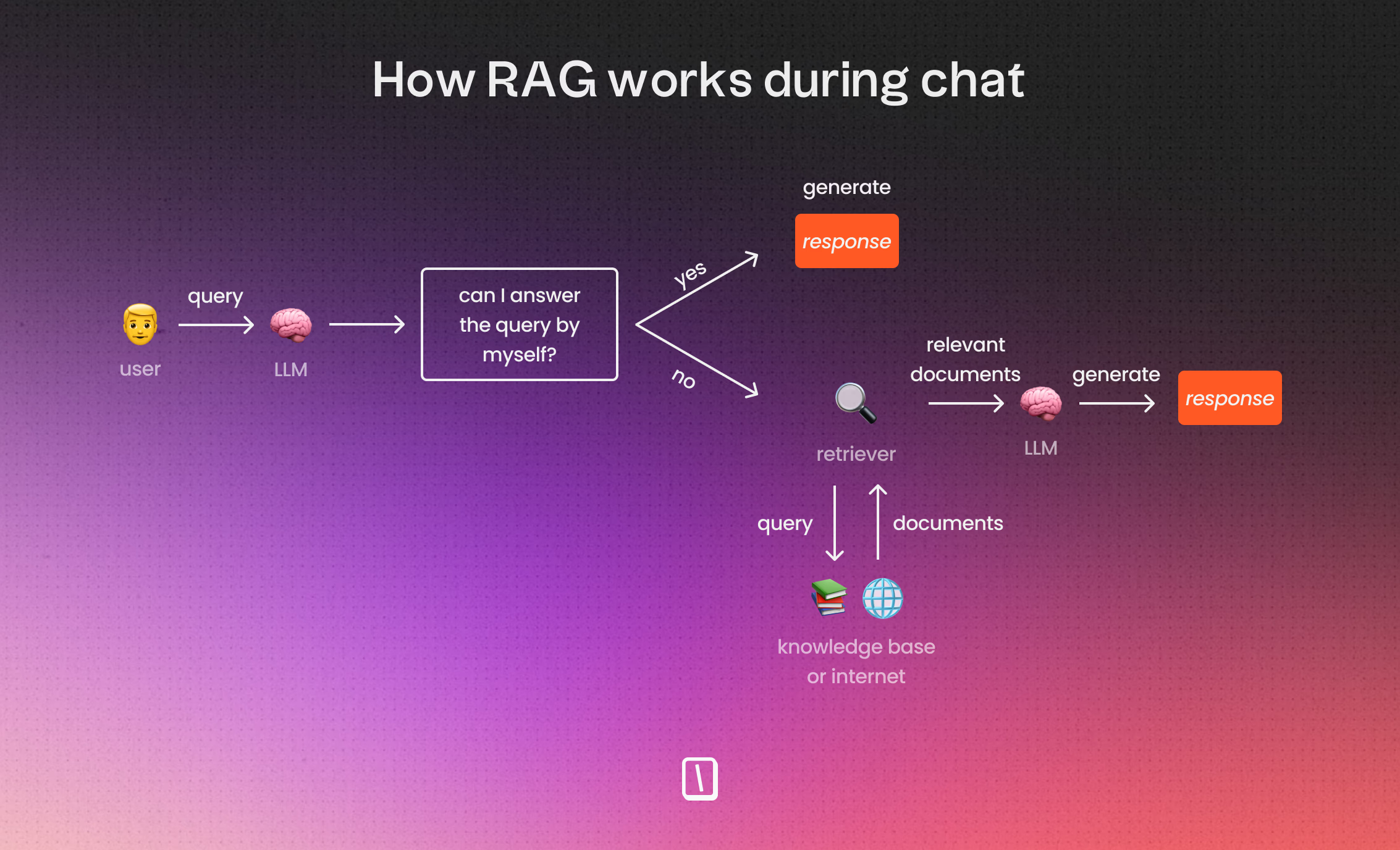
Think of it as the “employee with open-book notes” model. Without RAG, the employee answers from memory. With RAG, they first find the right page, then respond.
Here’s the practical sequence:
- Collect your source content such as help articles, PDFs, Notion pages, SOPs, FAQs.
- Split that content into smaller pieces called “chunks” so only relevant parts are fetched later.
- Convert each chunk into an embedding, which is a numerical representation of its meaning.
- Store those embeddings in a vector database.
- When a user asks a question, convert it into an embedding as well.
- The vector database returns the most semantically similar chunks (top 3, 5, or 10).
- The language model receives the question, retrieved chunks, and instructions as a prompt.
- The language model generates the final answer, which the chatbot displays.
RAG is not a “smarter model.” It’s a better process built around the model.
From documents to chunks, embeddings, and answers: what happens really
A RAG chatbot doesn’t “read your company.” You choose what content to provide. The quality of answers depends heavily on your source material. Outdated or unclear documents lead to poor responses.
The first key step is chunking: breaking documents into smaller, searchable pieces.
For example, a 3,000-word help article called “How billing works” should be chunked so the system can retrieve only the section about billing frequency or plan changes when asked, “Can I switch from monthly to yearly billing?”
Next comes embeddings, which represent the meaning of text as numbers rather than exact words. This allows different phrasings to be recognized as similar, for example:
- “How do I reset my password?”
- “I can’t log in, how can I change my password?”
This capability makes RAG more powerful than simple keyword searches by focusing on closest meaning instead of exact matches.
Why vector databases matter for semantic search and common pitfalls
A vector database serves one main purpose: find text similar in meaning.
Classic databases excel at exact matches, such as:
- customer_id = 123
- country = France
- plan = premium
RAG asks a different question:
- “Which document passage means something close to the user’s question?”
That is why most RAG architectures rely on vector databases: they store embeddings optimized for semantic similarity search.
Important limitation: classic RAG is powerful but not perfect. Retrieval quality limits final answers.Common issues include:- Outdated or unclear source documents.- Poor chunking size — too big or too small.- Weak retrieval returning incomplete or irrelevant context.- Over-relying on the language model to fill gaps.RAG reduces hallucinations but does not eliminate them. Focus on improving retrieval rather than expecting the model alone to handle errors.
What you need before building a RAG chatbot
Preparing your knowledge base and source documents
Before using Typebot, Pinecone, or an AI model, you need to decide what content the bot is allowed to use.
A typical RAG chatbot does not access your entire company knowledge. It only answers based on the specific documents you provide, such as PDFs, help center articles, internal guides, pricing policies, onboarding instructions, SOPs, and course materials.
To prepare your content, review it with these criteria:
- Coverage: Do you have documents that answer common questions about product use, policies, or exceptions?
- Clarity: Are answers straightforward and detailed enough for someone to act on them?
- Consistency: Do documents agree on topics like pricing, refunds, or setup steps?
Choosing between code and no-code approaches
There are two main ways to build a RAG chatbot:
- Build the entire pipeline with code: ingestion, embeddings, storage, retrieval, orchestration, and UI.
- Connect modular tools like Typebot (conversation layer), Pinecone (vector database), and an LLM via OpenRouter, mainly using UI.
Both methods work. The key question is what you value more: quick setup and easy maintenance, or detailed control.
Think of Typebot in a RAG setup as the user-facing conversation and orchestration layer, not the knowledge storage. It handles user messages, runs flow logic, calls AI and knowledge tools, and shows results.
Essential tools and accounts to set up
For a straightforward no-code RAG build using Typebot’s UI, have these ready:
- A Typebot account to build chat flows, manage variables, logic, and UI.
- An OpenRouter API key configured in Typebot credentials to call a chat model for generating answers.
- A Pinecone API key to let your retrieval tool access the vector database.
- A set of documents you want the bot to answer from.
The easiest way to ingest documents without handling embeddings manually is Pinecone Assistant. It handles chunking, embedding, and storage automatically:
-
Go to the Pinecone console and create a new Assistant
-
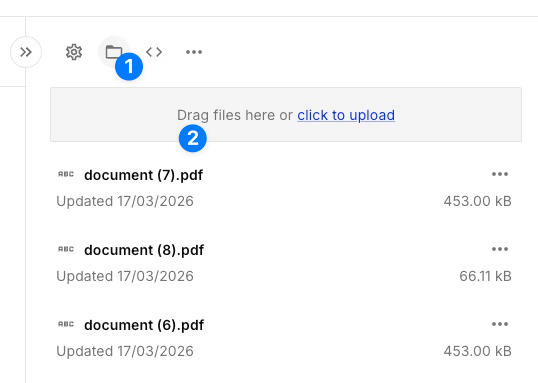
Upload your documents in the Assistant playground (PDFs, TXT, MD, and other formats supported)
-
Pinecone automatically chunks text, generates embeddings, and indexes your content
-
Note your Assistant name for API calls, or use the built-in chat interface to test
If you prefer working with a traditional vector index (for custom retrieval logic in Typebot), you can still create a serverless index manually in the Pinecone console. The index host value is crucial for API calls. It looks like this:
your-index-name-xxxxxxx.svc.xxx.pinecone.ioBefore building your Typebot flow, collect these details:
PINECONE_API_KEYPINECONE_INDEX_HOST- your OpenRouter credential inside Typebot
- the model you plan to use in Typebot
For future security, decide who on your team should have workspace editor access in Typebot. Editors can view configured code and credentials. Setting expectations early avoids surprises when the chatbot becomes business-critical.
When these pieces are ready, building in Typebot is straightforward. You assemble a small conversation loop, store dialogue history, and let the model call Pinecone for retrieval before replying.
How to build a RAG chatbot without code using Typebot
How to create your bot and set up the right variables
If your chatbot partly remembers context but misbehaves on follow-ups, this step fixes that by making memory explicit.
In Typebot, create a new bot from scratch and add these three session variables:
QuestionDialogue historyAssistant reply
The names don’t have to be exact, but the roles matter. Question stores the latest user message. Assistant reply holds the model’s last response. Dialogue history keeps a running log, making the conversation coherent.
Add a simple intro so users understand the bot and what to ask. The “Intro” group includes three text bubbles and then a text input saved into Question:
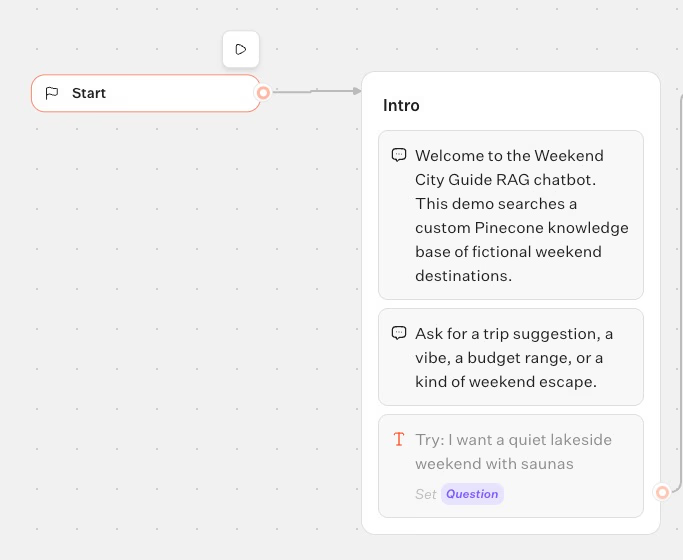
- “Welcome to the Weekend City Guide RAG chatbot.”
- “This demo searches a custom Pinecone knowledge base of fictional weekend destinations.”
- “Ask for a trip suggestion, a vibe, a budget range, or a kind of weekend escape.”
- Text input → save to
Question(placeholder: “Try: I want a quiet lakeside weekend with saunas”)
At this point, you’ve built a basic chatbot framework ready for retrieval integration.
This setup explicitly handles memory, preparing your chatbot to maintain context accurately.
How to configure the OpenRouter block with Pinecone Assistant
Build the bot's core by adding an OpenRouter chat completion that calls a Pinecone Assistant context tool before responding.
Create three groups in Typebot:
- Group 1: Intro (already started)
- Group 2: Store the user message
- Group 3: Generate the answer
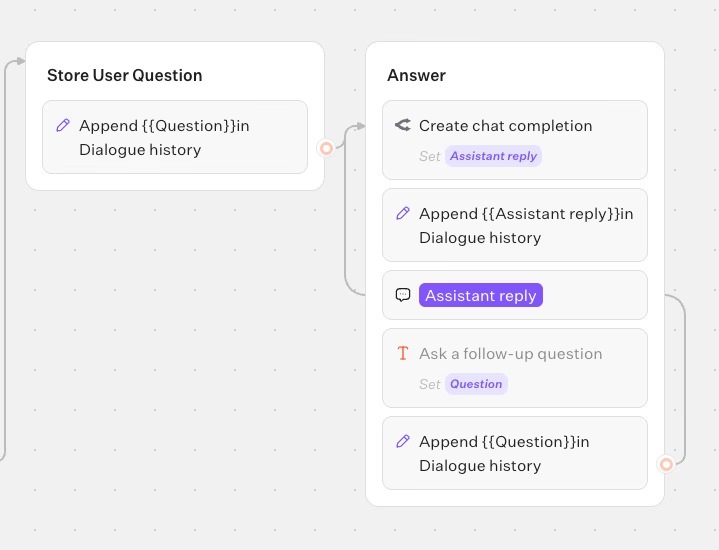
In Group 2, add a Set variable block that appends the current question to Dialogue history:
- Variable:
Dialogue history - Type: Append value(s)
- Value:
\{\{Question\}\}
This step ensures follow-ups maintain coherence by preserving conversation context.
In Group 3, add an OpenRouter block with these settings:
- Action: Create chat completion
- Credential: your OpenRouter credential
- Model: choose one that is good with tool calls and match you intelligence needs
Include this System Prompt:
You are a helpful weekend city guide assistant for a tutorial article about RAG.

Always call the search_weekend_city_guides tool before giving travel advice.
Base your answer only on the retrieved records.
Recommend the best matching city first, mention why it fits the user's request, and include 2 or 3 concrete highlights.
If results are weak, say that the knowledge base is limited rather than inventing facts.
When you call the tool, pass the user's latest message into the required query parameter.
Add one Dialogue message inside the OpenRouter block:
- Dialogue variable:
Dialogue history - Starts by:
user
Map the response so it can be reused downstream:
- Response mapping:
Message content→Assistant reply
This mapping lets you show the answer and store it back into memory.
Configuring OpenRouter this way makes your chatbot’s answers grounded in searched data.
Add the Pinecone tool inside the same OpenRouter block
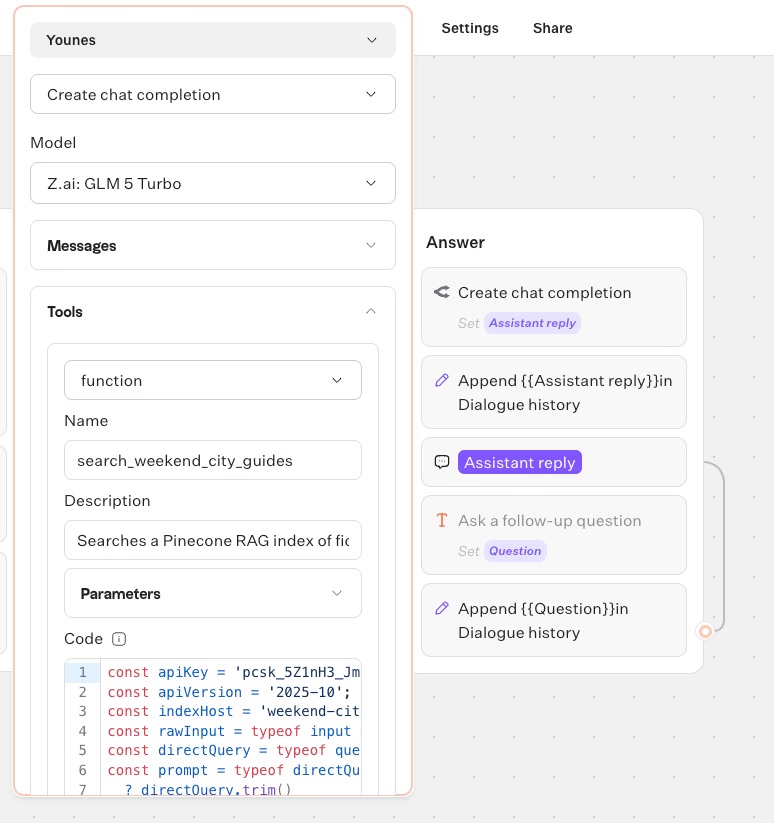
Inside the OpenRouter block, add one tool:
- Type:
function - Name:
search_weekend_city_guides - Description:
Retrieves context snippets from a Pinecone Assistant knowledge base of fictional weekend destinations.
Add one required string parameter:
- Name:
query - Description:
The travel preference or question to search for.
Paste the tool code below, which calls the Pinecone Assistant context endpoint and returns relevant snippets from your uploaded documents:
Show the Pinecone tool code
const apiKey = "REPLACE_WITH_PINECONE_API_KEY";
const apiVersion = "2025-10";
const assistantName = "REPLACE_WITH_PINECONE_ASSISTANT_NAME";

const rawInput = typeof input === "undefined" ? undefined : input;
const directQuery = typeof query === "undefined" ? undefined : query;

const prompt =
  typeof directQuery === "string" && directQuery.trim()
    ? directQuery.trim()
    : typeof rawInput === "string" && rawInput.trim()
      ? rawInput.trim()
      : typeof rawInput?.query === "string" && rawInput.query.trim()
        ? rawInput.query.trim()
        : "";

if (!prompt) {
  return JSON.stringify({
    error: "Missing query",
    receivedQuery: directQuery ?? null,
    receivedInput: rawInput ?? null
  });
}

async function readResponse(response) {
  if (!response) return null;
  if (typeof response.json === "function") return await response.json();
  if (typeof response.text === "function") return await response.text();
  if (response.data !== undefined) return response.data;
  if (response.body !== undefined) return response.body;
  return response;
}

function coerceJson(value) {
  if (typeof value !== "string") return value;
  try {
    return JSON.parse(value);
  } catch {
    return value;
  }
}

const response = await fetch(`https://prod-1-data.ke.pinecone.io/assistant/chat/${assistantName}/context`, {
  method: "POST",
  headers: {
    "Api-Key": apiKey,
    "X-Pinecone-Api-Version": apiVersion,
    "Content-Type": "application/json",
    "Accept": "application/json"
  },
  body: JSON.stringify({
    query: prompt,
    top_k: 6,
    snippet_size: 1200,
    multimodal: false
  })
});

const rawData = await readResponse(response);
const data = coerceJson(rawData);

if (response?.ok === false || response?.status >= 400) {
  return JSON.stringify({
    error: "Context request failed",
    status: response?.status ?? null,
    body: data
  });
}

const snippets = data?.snippets || data?.result?.snippets || data?.context?.snippets || [];

return JSON.stringify({
  query: prompt,
  snippets: snippets.map((snippet, index) => ({
    id: snippet?.id ?? index + 1,
    score: snippet?.score ?? snippet?._score ?? null,
    content: snippet?.content ?? snippet?.text ?? "",
    source: snippet?.source ?? snippet?.document_name ?? snippet?.file_name ?? snippet?.file?.name ?? null,
    page: snippet?.page ?? snippet?.page_number ?? null
  })),
  rawType: typeof rawData
});
Remember to replace:
REPLACE_WITH_PINECONE_API_KEY→ your Pinecone API keyREPLACE_WITH_PINECONE_ASSISTANT_NAME→ your Assistant name (e.g.,weekend-guides)
Use your own Pinecone project host to avoid debugging incorrect indexes.
How to build the conversation loop (so it works on follow-ups)
For a chatbot that handles multiple questions and follow-ups, add these blocks right after the OpenRouter block in Group 3:
- Set variable → append the assistant's answer to
Dialogue history
- Variable:
Dialogue history - Type: Append value(s)
- Value:
\{\{Assistant reply\}\}
- Text bubble → display the assistant's answer:
\{\{Assistant reply\}\}- Text input → store the next user message into
Question - Set variable → append the next user question to
Dialogue history
- Variable:
Dialogue history - Type: Append value(s)
- Value:
\{\{Question\}\}
- Loop back this last block to the same OpenRouter block.
This loop lets OpenRouter process the updated conversation history, call the Pinecone search tool again, and provide answers based on the latest data.
Skipping either append step causes answers to lose context or feel disconnected.
This loop is essential for maintaining coherent, context-aware chat over multiple turns.
Test the chatbot with queries like:
- “Summarize the main idea of this document”
- “What does the uploaded guide say about pricing?”
- “Give me the key steps from the uploaded PDF”
- “What should I know before getting started?”
When it works well, the bot offers concrete recommendations with explanations, uses specific highlights from retrieved records, and admits its knowledge limits instead of inventing facts.
With this no-code setup: documents in Pinecone, a single OpenRouter block calling Pinecone search, and a Typebot loop ; you’ve built a reliable RAG chatbot ready for deployment on your preferred platform.
Create fully customizable chatbots without writing a single line of code.
No trial. Generous free plan.
Deploying your RAG chatbot anywhere
Embedding on your website
Before exploring channels, publish the bot version you want users to access. In Typebot, your changes aren’t live until you click the Publish button again.
Once published, deployment comes down to choosing the appropriate wrapper. Typebot offers options under the Share tab, including:
- HTML & Javascript
- Script
- Iframe
- Framework-specific options like React and Next.js
- Platform-specific paths such as WordPress, Shopify, Wix, and Google Tag Manager
If you want the bot embedded inside a page—for example, a docs page, pricing page, or help center article—a standard embed is the most reliable choice. It behaves like a normal page element: it takes space, scrolls with the page, and feels like part of the site.
Adding a chat bubble or popup
Not every page needs a full embedded assistant. Sometimes, you want the bot present but unobtrusive—available only when the visitor is ready.
Use Bubble and Popup deployments for this:
- Bubble appears as a chat icon at the bottom-right corner and waits to be opened by the user.
- Popup shows on top of the site when triggered, useful for prompting users at specific moments.
If your RAG chatbot replaces a FAQ or search bar, embedding usually works best. If it serves as a safety net to answer objections like “Does this integrate with X?” or “What’s your refund policy?”, a bubble typically fits better.
Also, pay attention to the previewMessage. This small prompt shows users what the bot does. Avoid vague prompts like “Chat with us.” Instead, use clear messages such as “Ask about our docs,” “Search the help center,” or “Get an answer from our knowledge base.”
Connecting to WhatsApp and other channels
Web deployment is only one option. In Typebot’s Share tab, you can also publish the same bot to channels where conversations happen naturally, starting with WhatsApp.
This “build once, deploy anywhere” method means your RAG logic—including the conversation loop, Dialogue History, OpenRouter block calling a Pinecone search tool, and answers grounded in retrieved records—remains unchanged. You only change the entry point, not the assistant itself.
Deployment checklist to save time
✅ Publish the bot version you want live; clicking Publish is mandatory.
✅ Choose the UX wrapper that matches your intent: use Standard for pages where the assistant is central, or Bubble/Popup for assistant-on-demand interactions.
✅ After deployment, perform a quick two-question follow-up test to ensure your conversation loop feels like a real chat, not disconnected single turns.
✅ Expand to other channels like WhatsApp only after the web experience works smoothly; use the same bot with different entry points.
Start building your RAG chatbot today
You now have everything you need to build a RAG chatbot without code. The system combines three core pieces: Typebot for conversation flow, Pinecone for document retrieval, and an LLM for generating answers grounded in your actual content.
The key insight is that RAG isn't about smarter models. It's about a smarter process. Your chatbot searches before it speaks, which eliminates hallucinations and keeps answers accurate.
Start with a small, focused knowledge base. Upload your most-asked FAQs or help articles to Pinecone, build the conversation loop in Typebot, and test with real questions.
Leverage the power of OpenAI and Anthropic to create smarter, more human-like conversations.
No trial. Generous free plan.