
A WhatsApp bot depends on several external systems that must be configured before any automation can run. Meta requires approved apps, phone numbers, message templates, and verified webhooks before messages are allowed to flow reliably.
Before connecting nodes, complete the Meta developer setup. Decide if your bot will send business-initiated messages or only reply to users. The steps below guide you through this setup.
In this tutorial, you'll build a basic n8n WhatsApp chatbot. Then you'll learn how to overcome n8n's limitations by integrating Typebot.
This integration gives you a visual interface with rich media, buttons, and conditional logic. The result: a production-ready bot that handles complex conversations without manual coding.
Creating a Meta Business account and setting up the WhatsApp API
To use the WhatsApp Business, authenticate through Meta and create your app and test resources:
- Create a Business account in Meta Business Suite using your Facebook credentials.
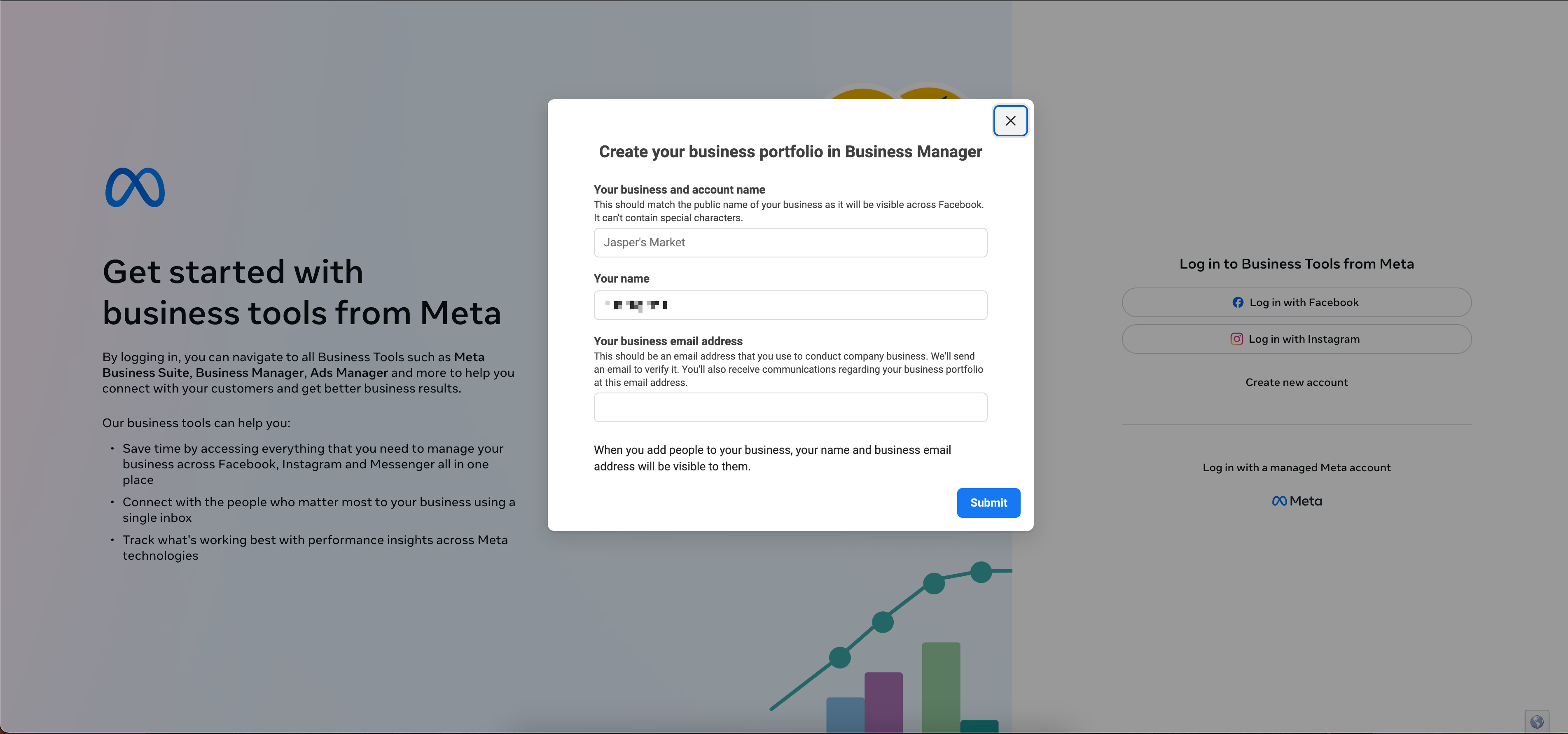
- Sign in to Meta for Developers and create a new app.
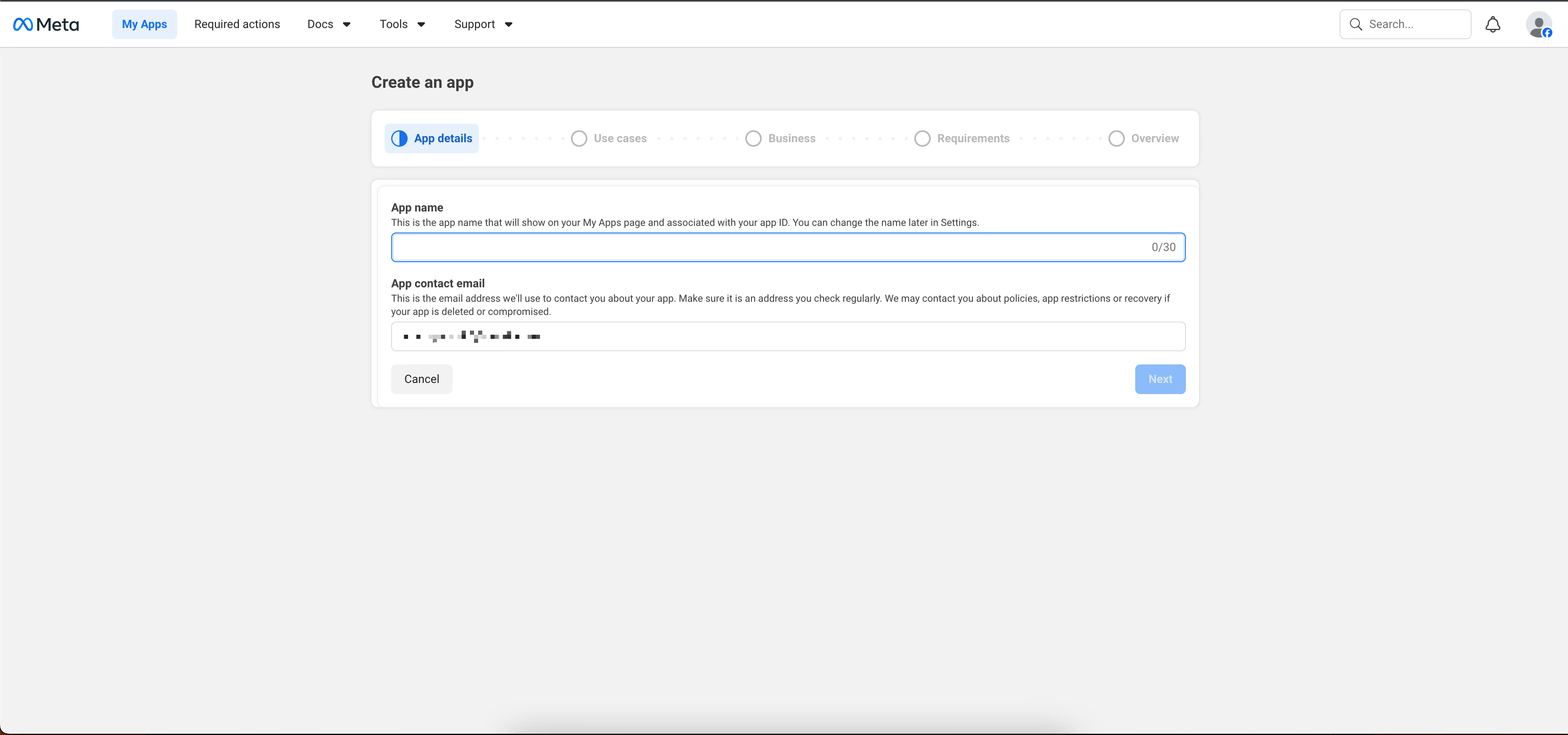
- Add the "WhatsApp" product to your app.
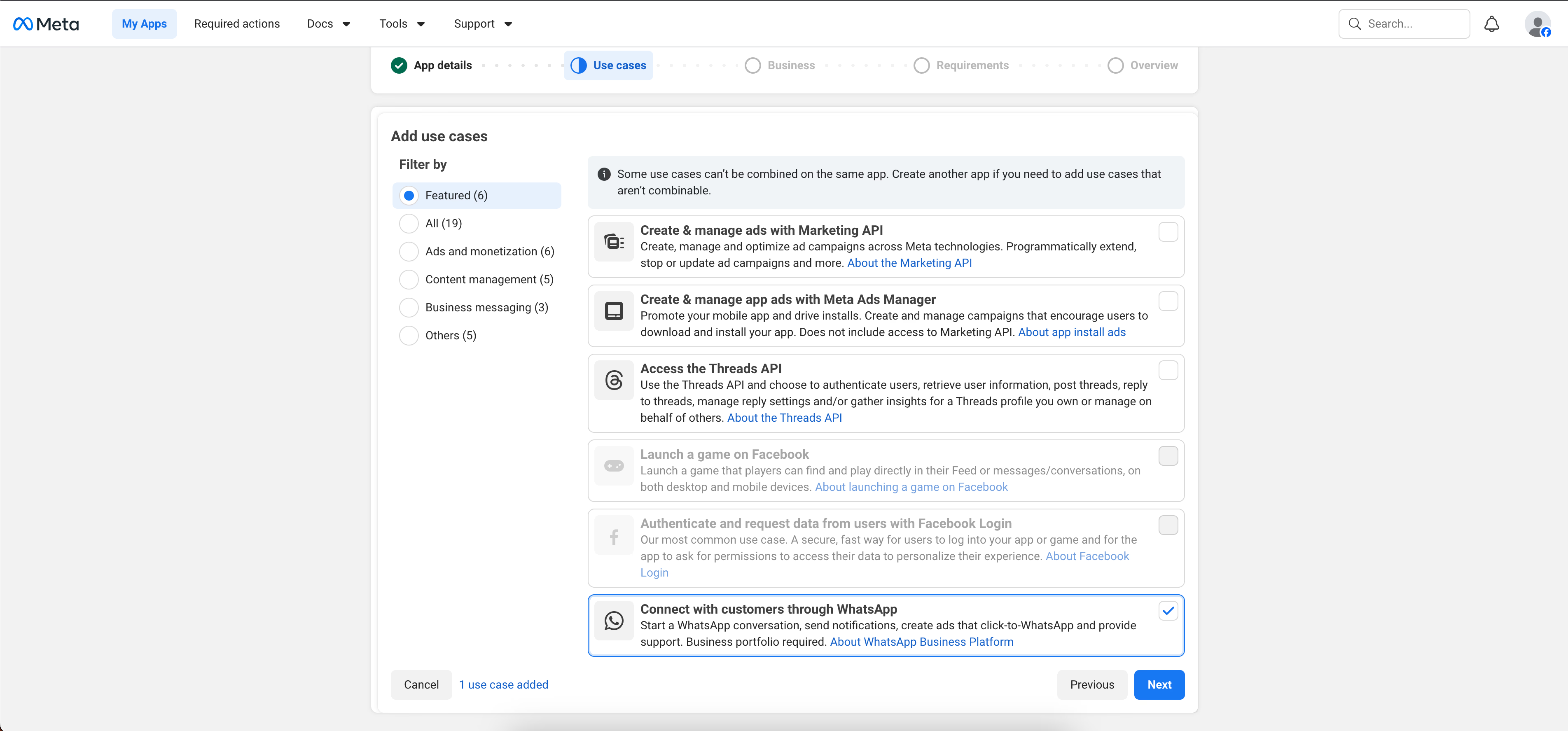
- Request the test phone number Meta provides for development.
- Verify up to five recipient numbers via OTP to allow them to receive messages from the test environment.
Once the test number is active, send a template message from the Developer console to confirm the connection.
Understanding the cost structure of WhatsApp API conversations
WhatsApp API pricing based on conversations:
- Free Tier: You get 1,000 free service conversations (user-initiated) each month for testing and small-scale use.
- Per-Conversation Billing: After the free tier, billing applies per conversation.
- Categories: Costs depend on the user’s country code and the conversation category (Utility, Marketing, Authentication, or Service).
Infrastructure: API access itself has no fixed monthly fee, but third-party hosting or dedicated infrastructure for n8n may add costs.
Gathering necessary credentials and access tokens
From your WhatsApp setup in the Meta for Developers portal, retrieve these credentials and keep them secure:
- Access Token: A temporary test token is available during development. For production, configure a permanent system user token.
- Business Account ID: The unique identifier for your business entity on Meta.
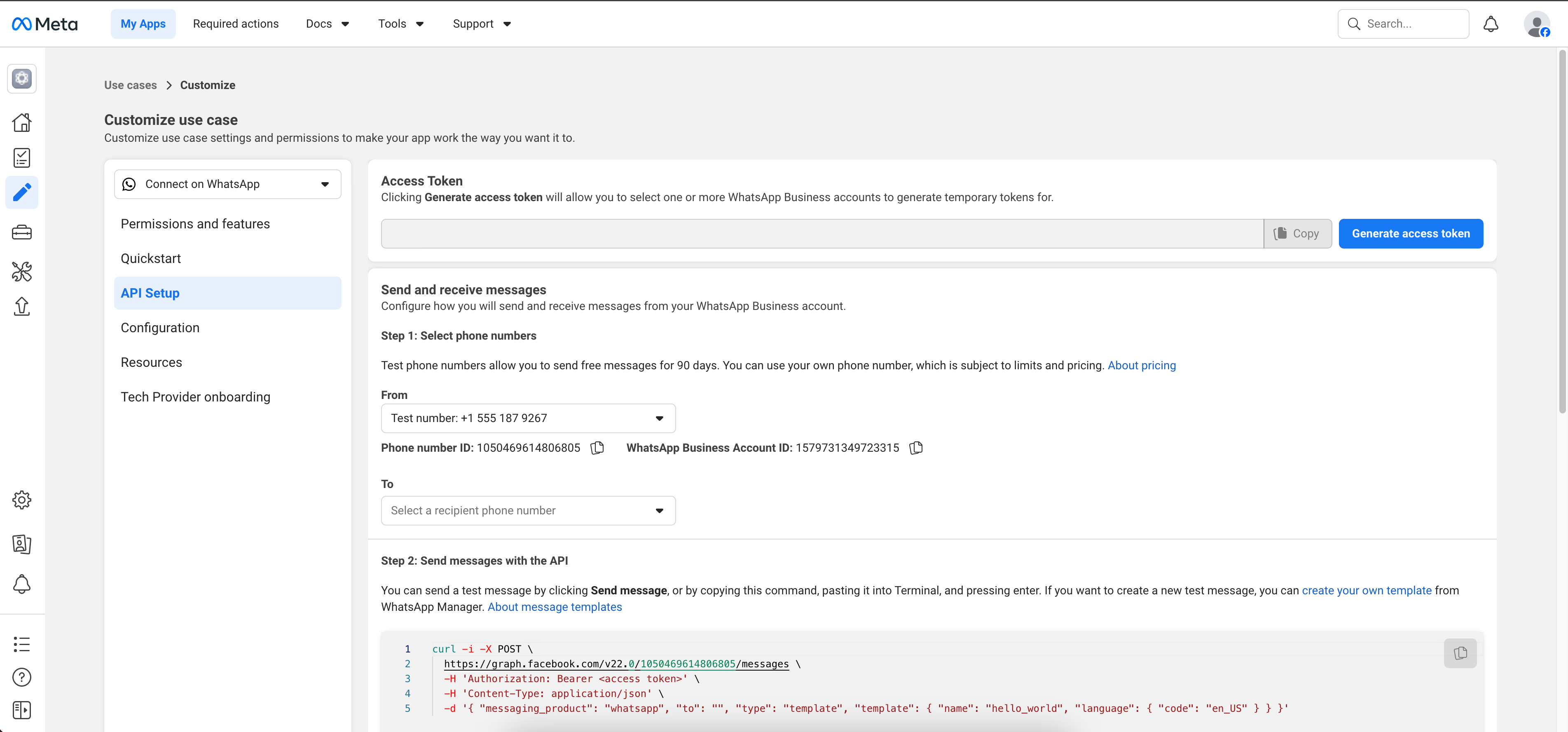
- Phone Number ID: The ID assigned to your test phone number, different from the phone number itself.
Copy these strings and paste them into the credentials section of the WhatsApp Business Cloud node in n8n. Once saved, your workflow can send and receive data securely.
Building n8n WhatsApp bot
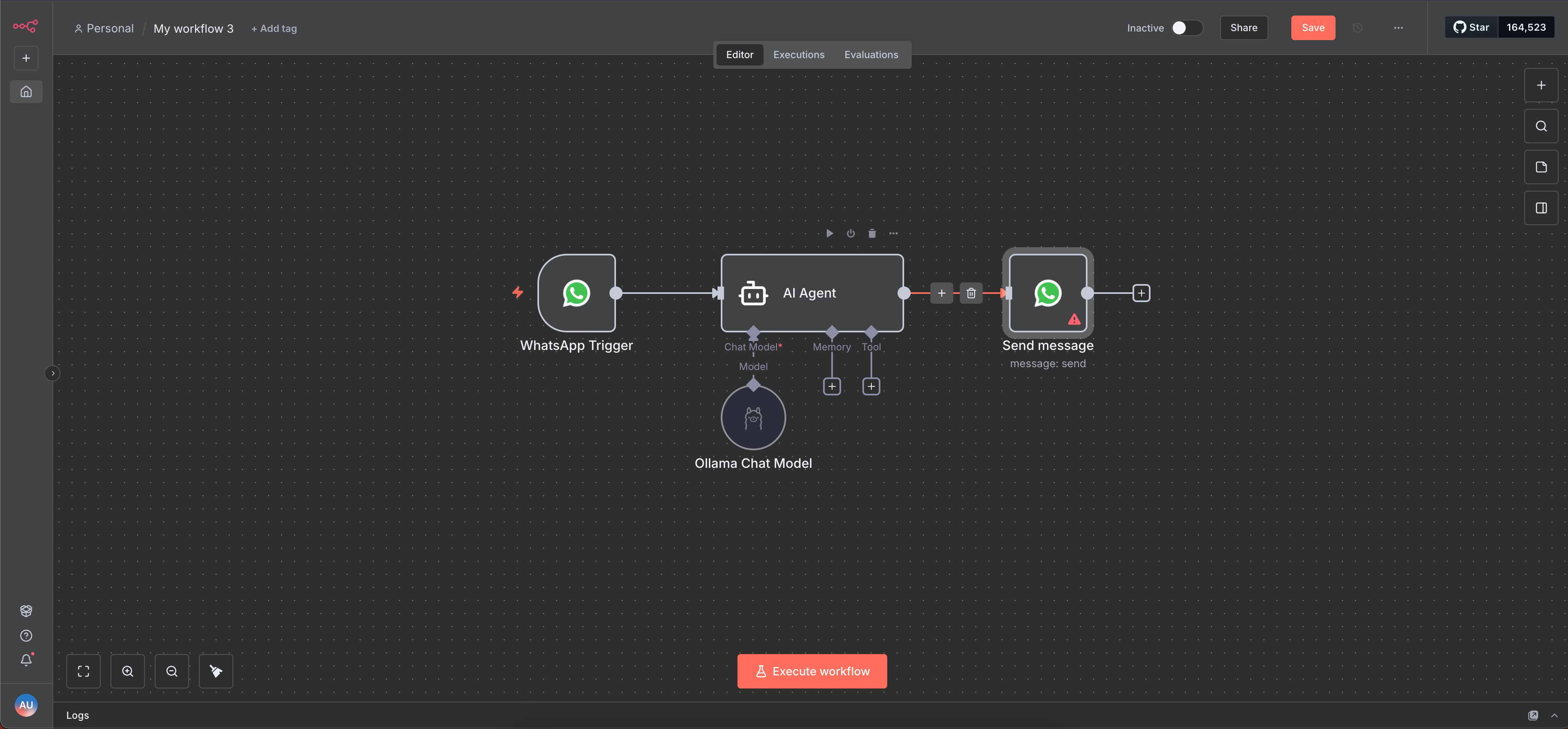
The workflow requires three main components. Receiving the message, thinking (AI), and sending the reply.
Step 1: The Trigger Node
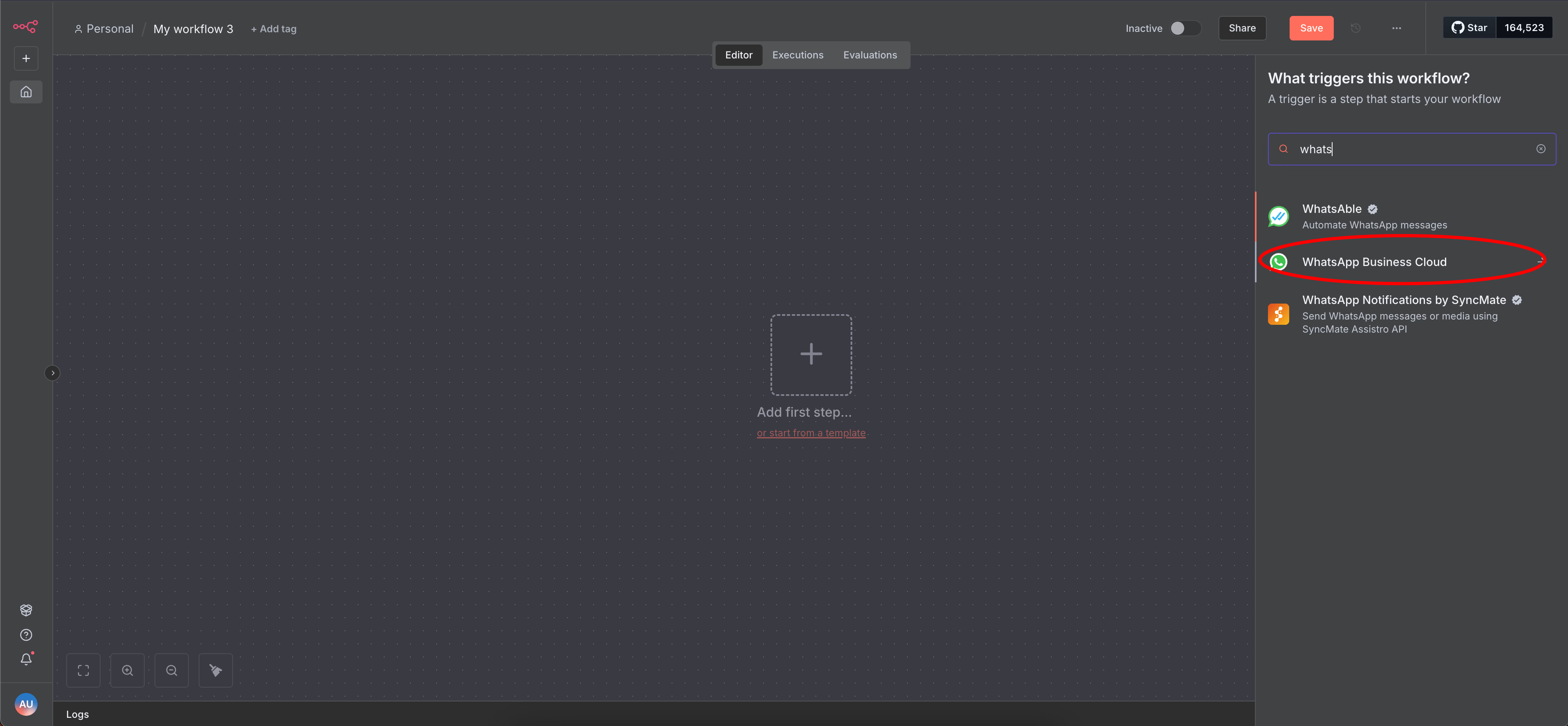
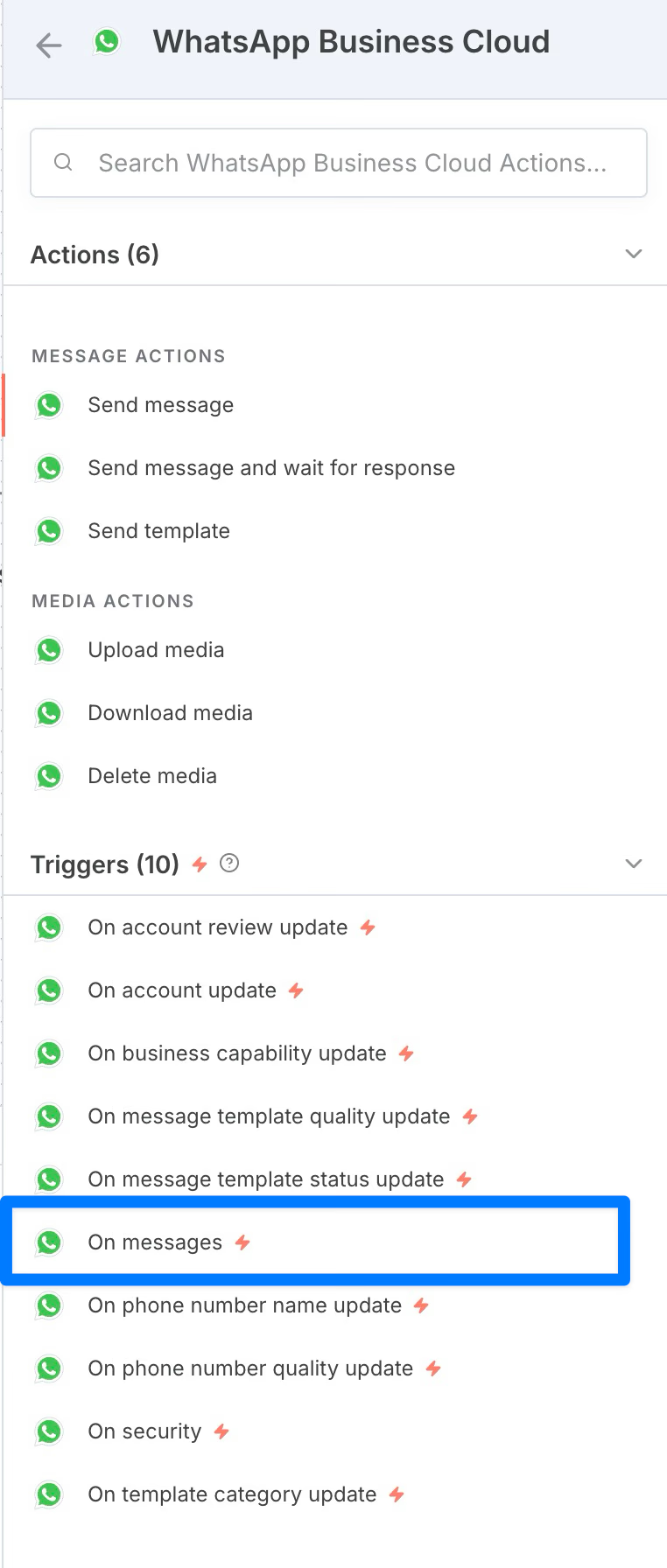
- Add the WhatsApp Trigger node. Select
On messages
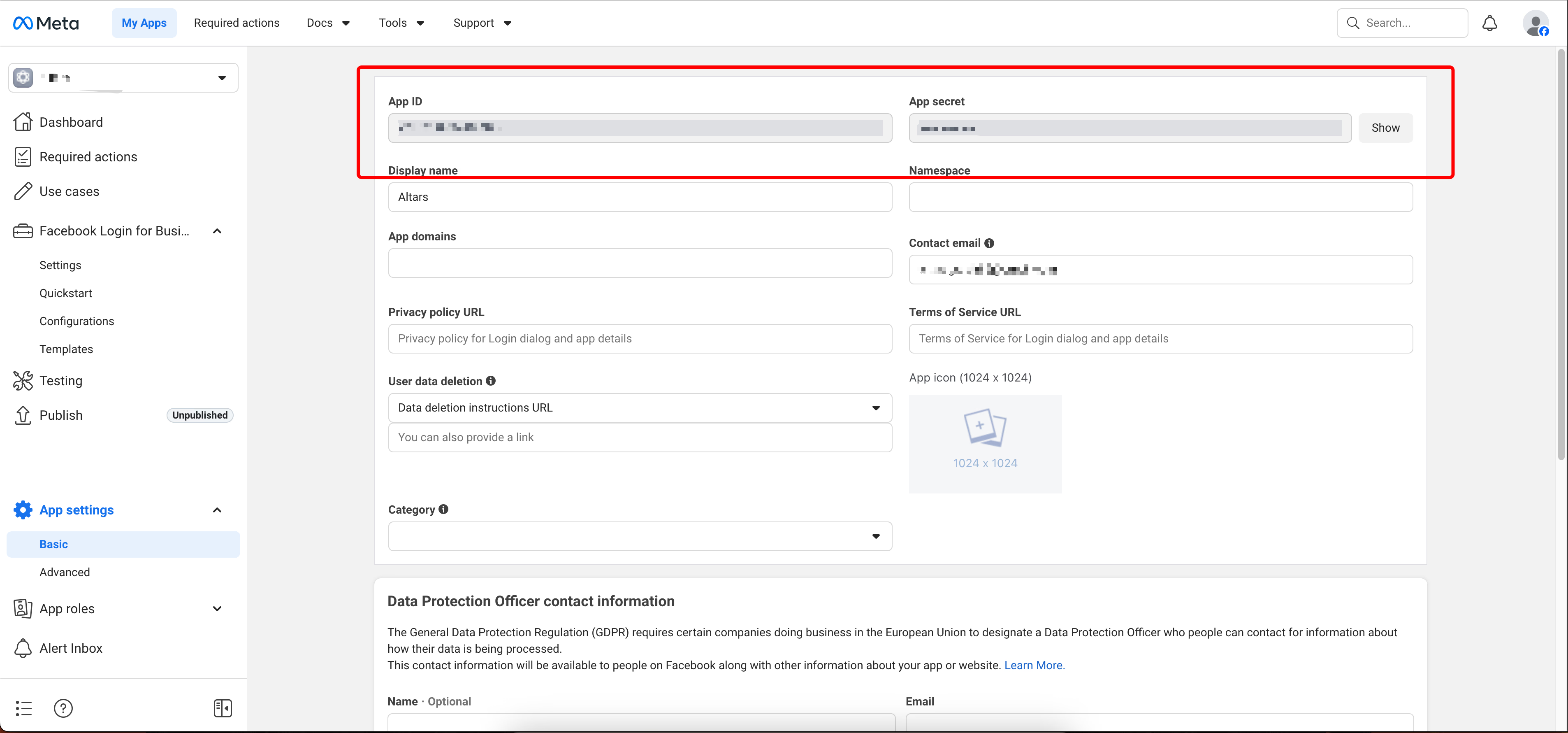
- Create a new credential using the App ID and App Secret from Meta.
- This node "listens" for incoming messages.
Step 2: The AI Agent Node
- Connect an AI Agent node to the trigger.
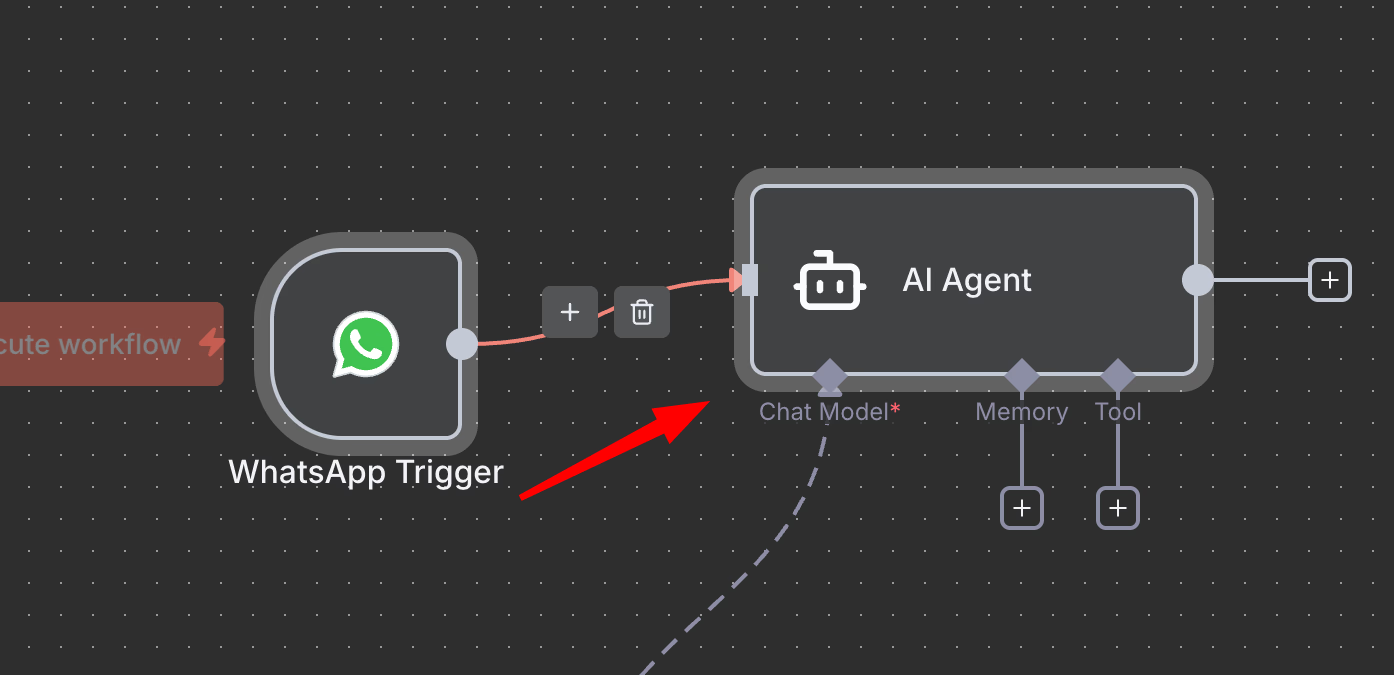
- Connect a chat model; for chat you don't use expensive models.
gpt-5-mini, orclaude 4.5 haikuare enough. - Configure the agent's "User Message" by dragging the body field from the WhatsApp Trigger output.
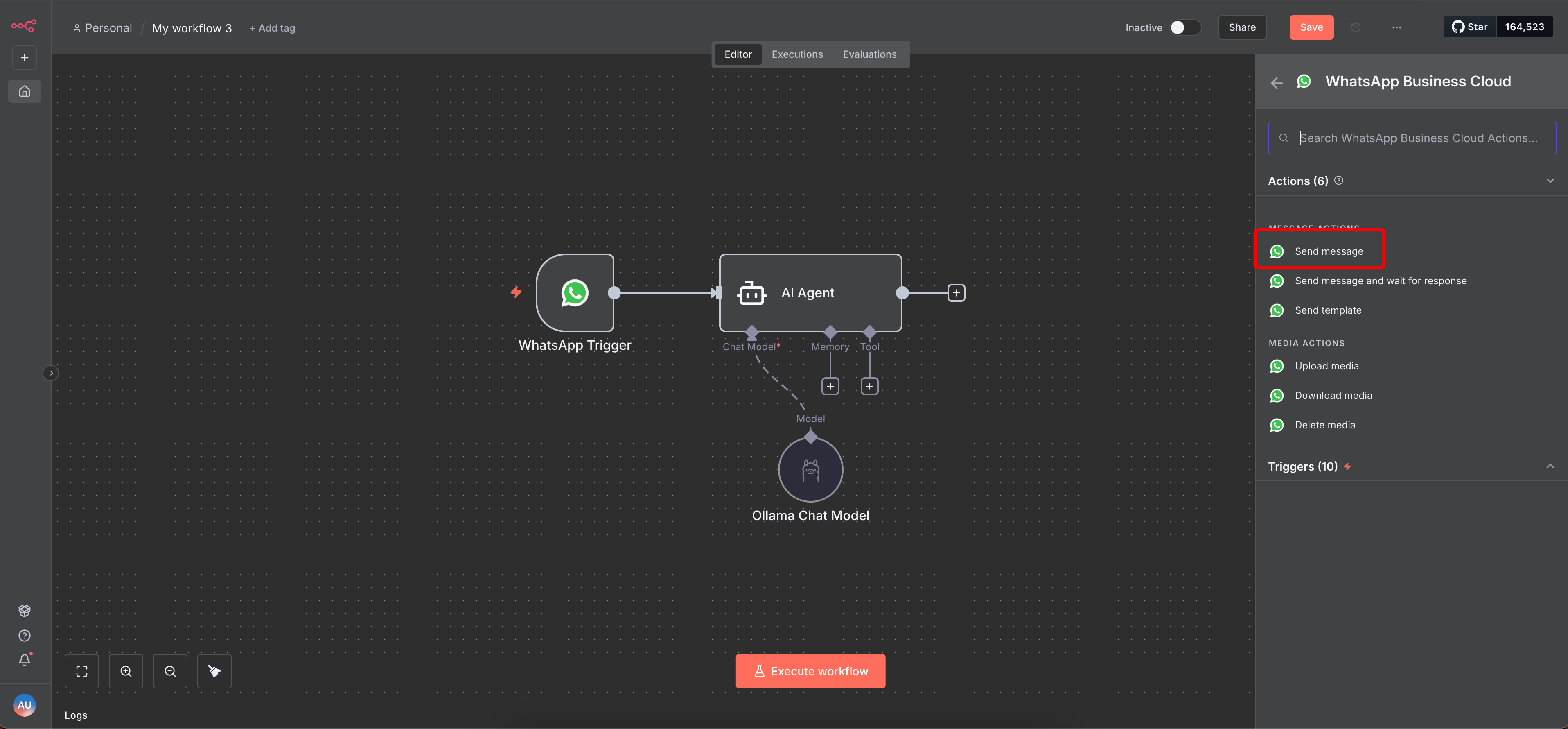
Step 3: The Send Message Node
- Add a WhatsApp Business Cloud node set to Send Message.
-
Credentials: Create a new credential using the Access Token and Business Account ID.
-
Content: Map the output text from the AI Agent into the "Text Body" field. | | | | --------------- | ---------------------------------------------------------------------------------------------------------------------------------------------------------------------------- | | Feature | Details | | Credentials | You need two sets: one for the Trigger (OAuth) and one for the Sender (Token). | | Testing | Use Execute Workflow manually in n8n to listen for messages while the app is in development mode. | | Production | Once live, you can swap the "Test Number" for a real business phone number. | | API Costs | Each AI response consumes tokens. For example, GPT-4o costs $2.50 per 1M input tokens and $10 per 1M output tokens. A typical 500-token response costs approximately $0.005. |
The challenges of managing complex flows in n8n
n8n gives you direct access to the WhatsApp API. However, you must manage the conversation infrastructure yourself.
The Meta developer portal gives you powerful tools with precision. However, you must handle constraints and integration details carefully.
Handling strict 24-hour conversational windows manually
WhatsApp enforces a strict 24-hour conversational window. From an automation perspective, this creates two non-negotiable rules:
- Track Timestamps: Your workflow must track the timestamp of the user’s last message.
- Branch Logic: You must branch accordingly. Send a custom reply within 24 hours, or trigger a business-initiated Template Message after the window expires.
You cannot use simple text nodes to reopen conversations once the window closes. Templates are mandatory and require approval, adding cost. Design your n8n logic to check the last message time and select the correct response path automatically to prevent policy violations.
The technical complexity of sending rich media like images and videos
Sending media outside the 24-hour window requires templates, which adds complexity:
- Creation: Must be created in WhatsApp Manager with defined variables.
- Approval: Must pass Meta’s approval process (can take up to 24 hours).
- Compliance: Lack of consent or spam reports can disable templates.
In n8n, a "Send Template" operation can break if the template status changes on Meta’s side. You must build error handling and status checks into your flows.
Difficulties in managing conversation state and user context variables
Managing state in n8n requires more setup than dedicated builders because the API separates verification from event delivery. You need to:
- Configure a GET method webhook to verify the connection (hub.challenge).
- Use a POST method webhook on the same path to receive actual message events.
Missing any step will cause the integration to fail.
Troubleshooting common webhook errors and JSON parsing failures
Incoming payloads include deliveries, reads, and message objects. If not filtered, your flow may error out by trying to reply to a "read receipt."
To filter and parse effectively:
- Add an IF Node (rename it "Is message?") to check for a message object:
\{\{ $json.body.entry[0].changes[0].value.messages[0] \}\} - Use this gate to avoid acting on delivery statuses.
- Extract message text by referencing:
\{\{ $json.body.entry[0].changes[0].value.messages[0].text.body \}\}
Note: If the JSON structure changes, executions can halt. Enable "Less Strict Type Validation" in n8n settings when needed.
Integrating Typebot to simplify the visual experience
Managing conversation trees with raw JSON in n8n can be cumbersome. Typebot offers a visual frontend that manages UX logic and state, letting your n8n setup focus purely on orchestration.
Why Typebot is the best companion for your n8n WhatsApp bot
Typebot eliminates manual payload building and session management required in backend-only workflows. It offers several benefits to your stack, including:
- A drag-and-drop editor that lets you create conversational flows without code.
- Built-in state management and input validation for emails, phones, and dates.
- Prebuilt elements like text bubbles, buttons, media embeds, and specialized inputs.
- Visual branching that mirrors user journeys, reducing complex if/else logic in n8n.
These features help you design and update UX quickly while n8n handles integrations and backend work.
Want to see real-world examples of WhatsApp chatbots in action? Check out WhatsApp chatbot use cases to understand how businesses are leveraging conversational flows for customer support, lead generation, and feedback collection.
Setting up your first conversational flow in the Typebot visual builder
Follow these quick steps to create a simple feedback flow:
- Open the Typebot editor, go to the Flow tab, and use the toolbox on the left (Bubbles, Inputs, Logic, Events).
- Add a Text bubble to welcome users.
- Add Buttons for options like "Report Bug" or "Suggestion."
- Use conditional blocks to create branches based on user choices.
- Collect details with Text input, and capture contact info using Email or Phone inputs.
- End with a confirmation Text bubble.
Using this visual builder speeds up iteration and makes conversations easier to review than backend JSON.
Ready to put your WhatsApp bot to work? Learn how to use WhatsApp for lead generation and discover strategies to convert conversations into qualified leads.
Connecting Typebot directly to your Meta WhatsApp app
Since you already have the app created in the Meta Developer Portal, we can skip the initial setup and dive straight into extracting the specific IDs and linking the webhooks.
1. Extract Your App Credentials
Navigate to your app in the Meta Developer Portal and go to WhatsApp > API Setup in the left sidebar. You need to copy two specific identifiers:
- Phone Number ID: Unique to the specific number you are using.
- WhatsApp Business Account ID (WABA ID): The ID of your business account.
2. Generate a Permanent Access Token
Do not use the temporary token shown on the "API Setup" page. It will expire in 24 hours and break your bot. You must create a permanent one:
- Go to your Meta Business Settings.
- Navigate to Users > System Users and click Add.
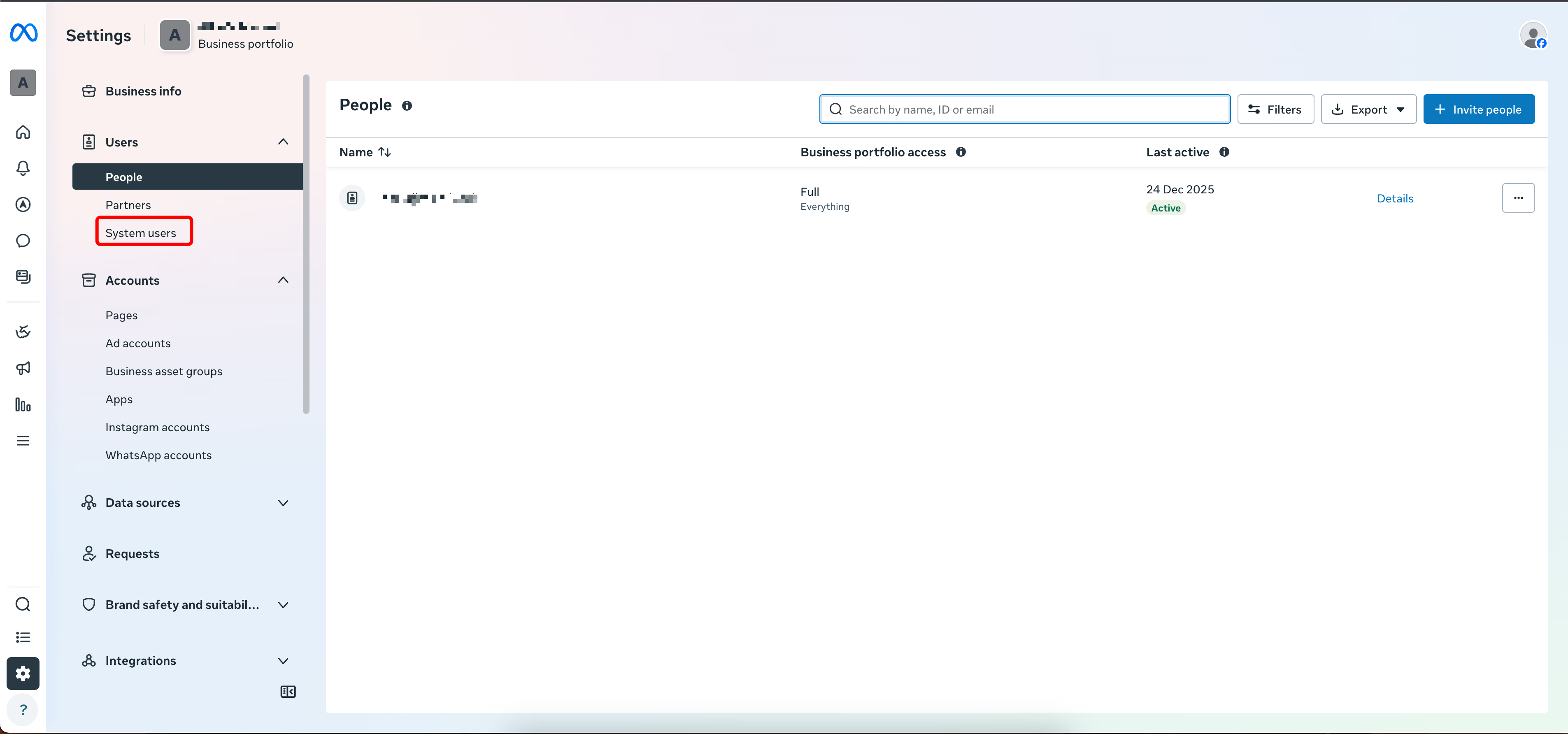
- Name it "Typebot" and set the role to Admin.
- Click Assign Assets, select Apps, find your app, and toggle on Full Control.
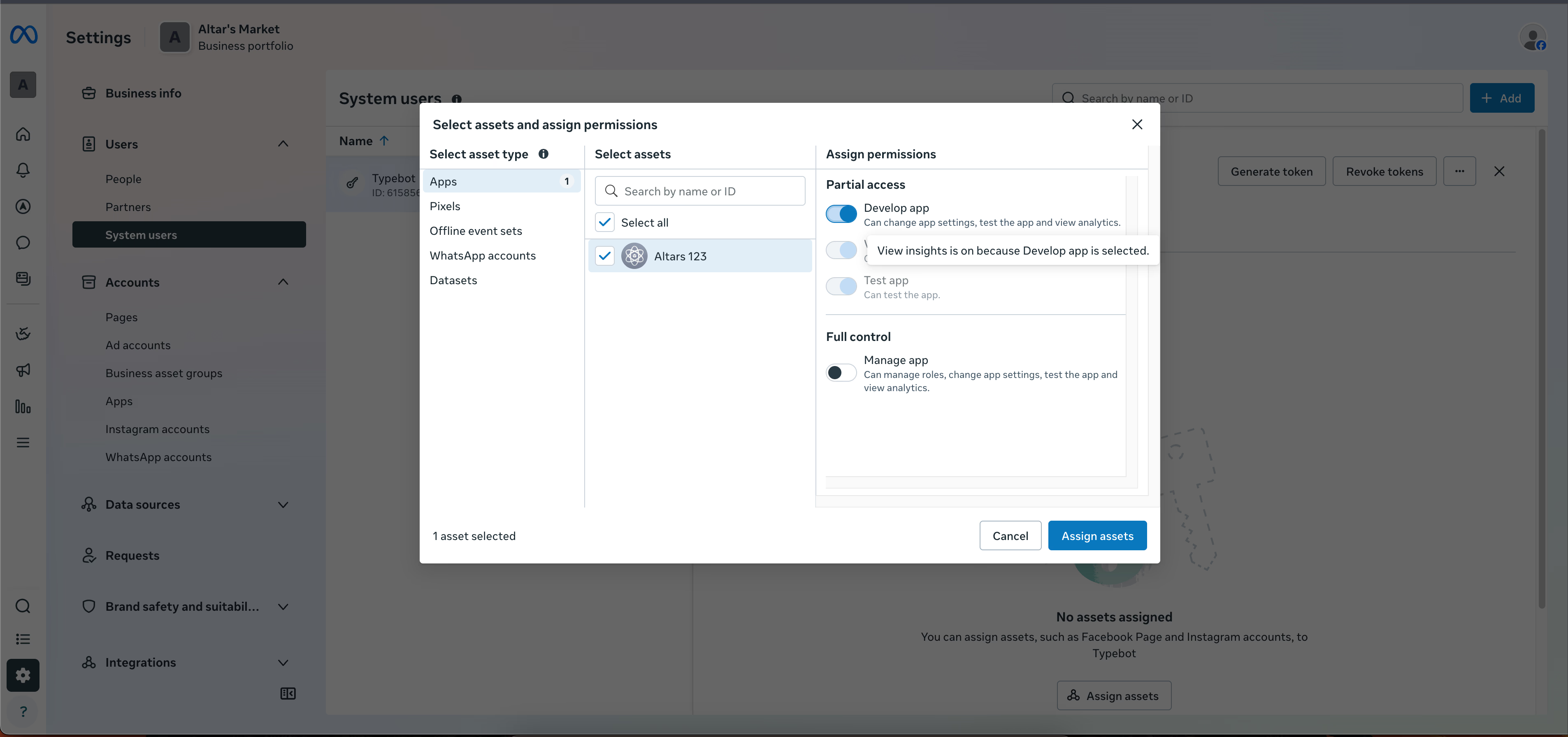
- Click Generate New Token. Ensure you select these two permissions:
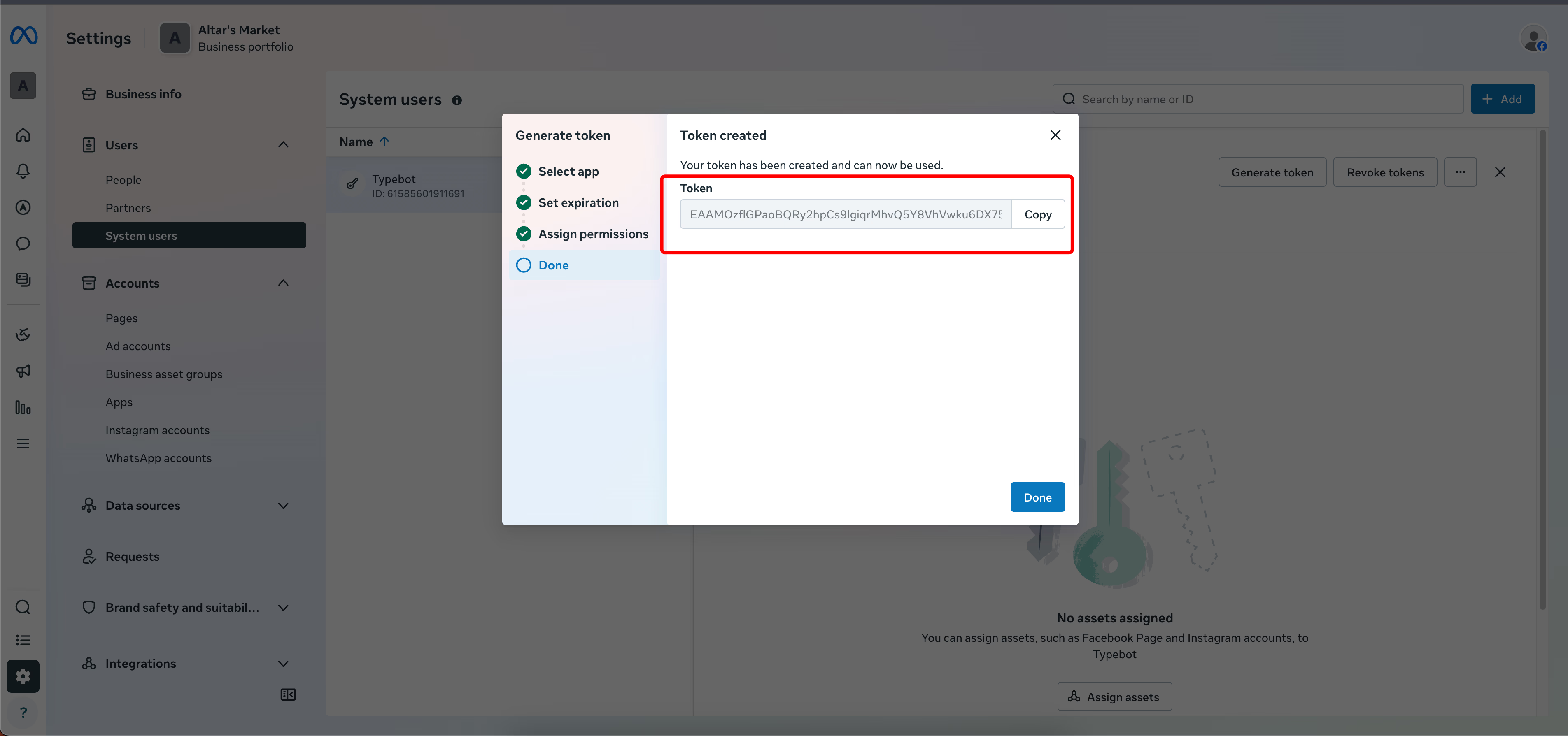
whatsapp_business_messaging
whatsapp_business_management
- Copy and save this token immediately.
3. Link Meta to Typebot
Now, open your Typebot workspace:
- Go to the Publish tab of your specific bot.
- Select WhatsApp from the sidebar.
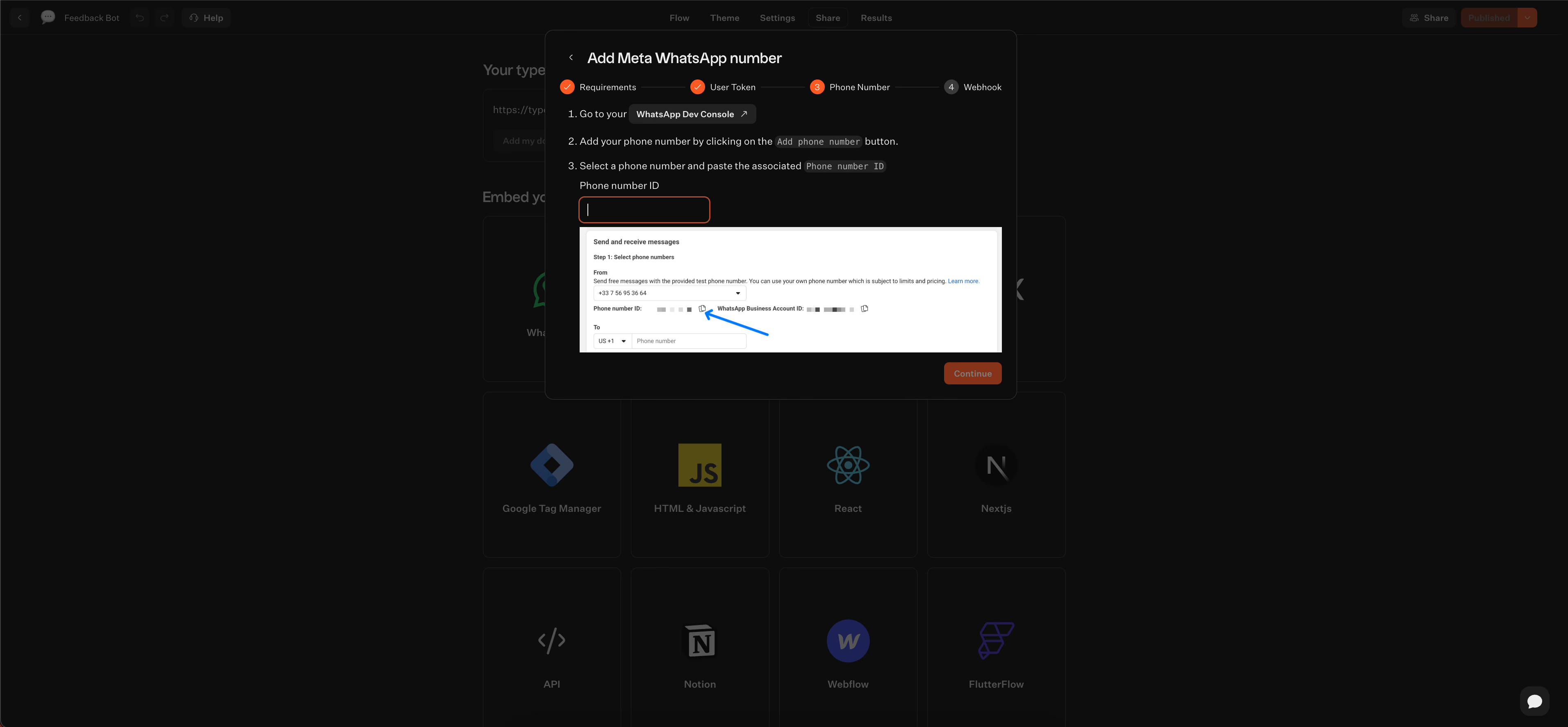
- Paste the Access Token, Phone Number ID, and WhatsApp Business Account ID you just collected.
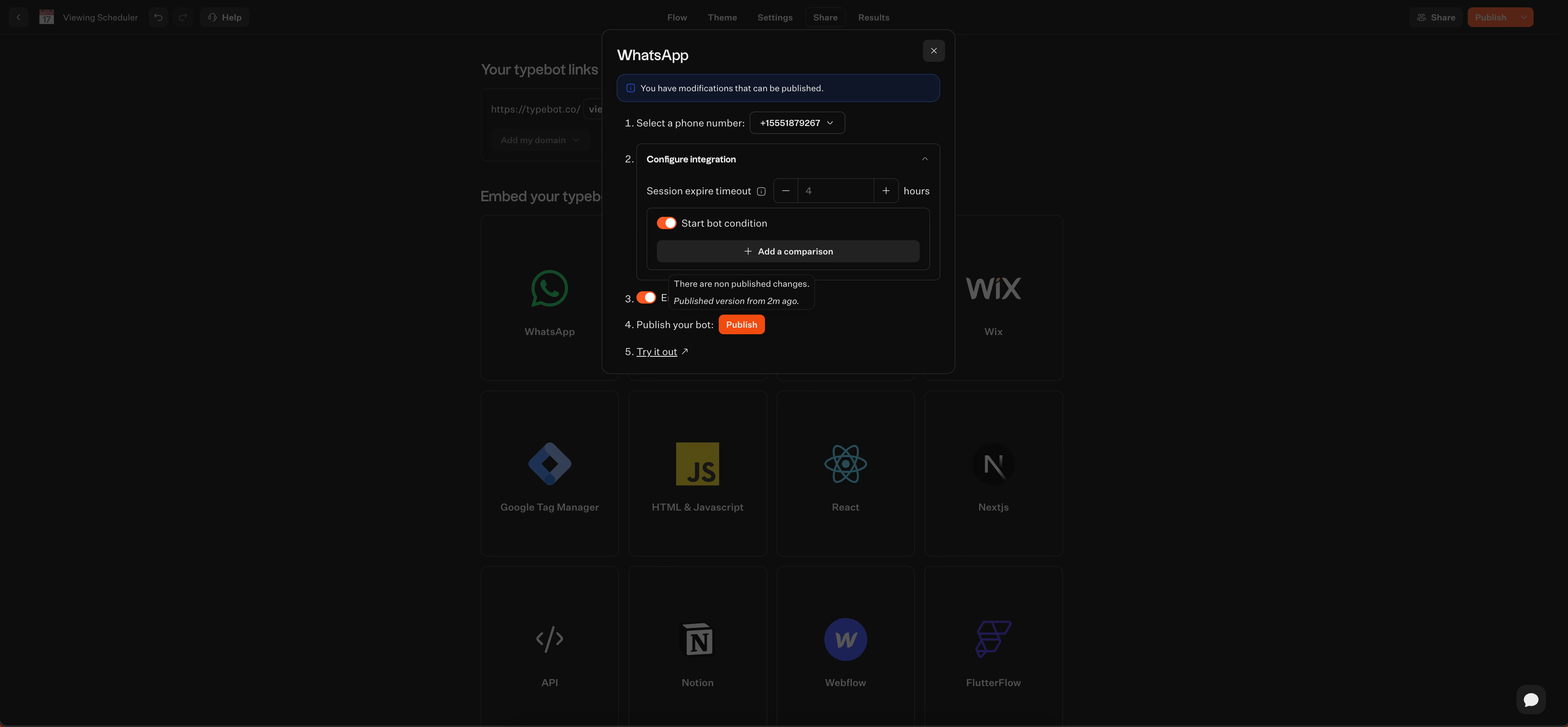
- Once you hit Publish, it is alive!
4. Final Checklist
- Production vs. Development: If your Meta app is still in "Development" mode, your bot will only respond to "Verified" numbers you've added in the API Setup page.
- Payment Method: Even if you are using free-tier messages, Meta requires a credit card on file in the WhatsApp Business Manager > Billing section to allow the API to function reliably.
- Button Limits: Remember that WhatsApp supports a maximum of 3 buttons per message. If your Typebot flow has more, it will automatically group them.

Create, customize, and deploy your first Typebot today. No coding required.
No trial. Generous free plan.
Leveraging Typebot for advanced rich components
Typebot replaces manual JSON construction with a visual, block-based editor. This lets you assemble rich, interactive elements quickly. It transforms repetitive API tasks into a design process. Pick components, connect them, and Typebot handles rendering and state management.
This approach saves time and reduces errors in building chat flows.
Dragging and dropping images, GIFs, and videos into your chat flow
Adding media in Typebot means dragging a Bubble into your flow instead of hosting files or crafting payloads. Keep WhatsApp’s requirements in mind when preparing assets. Use:
- .mp4 for videos
- Raster formats (like JPG, PNG) for images; avoid SVG as it’s unsupported.
- Note that GIFs are not supported by this WhatsApp integration.
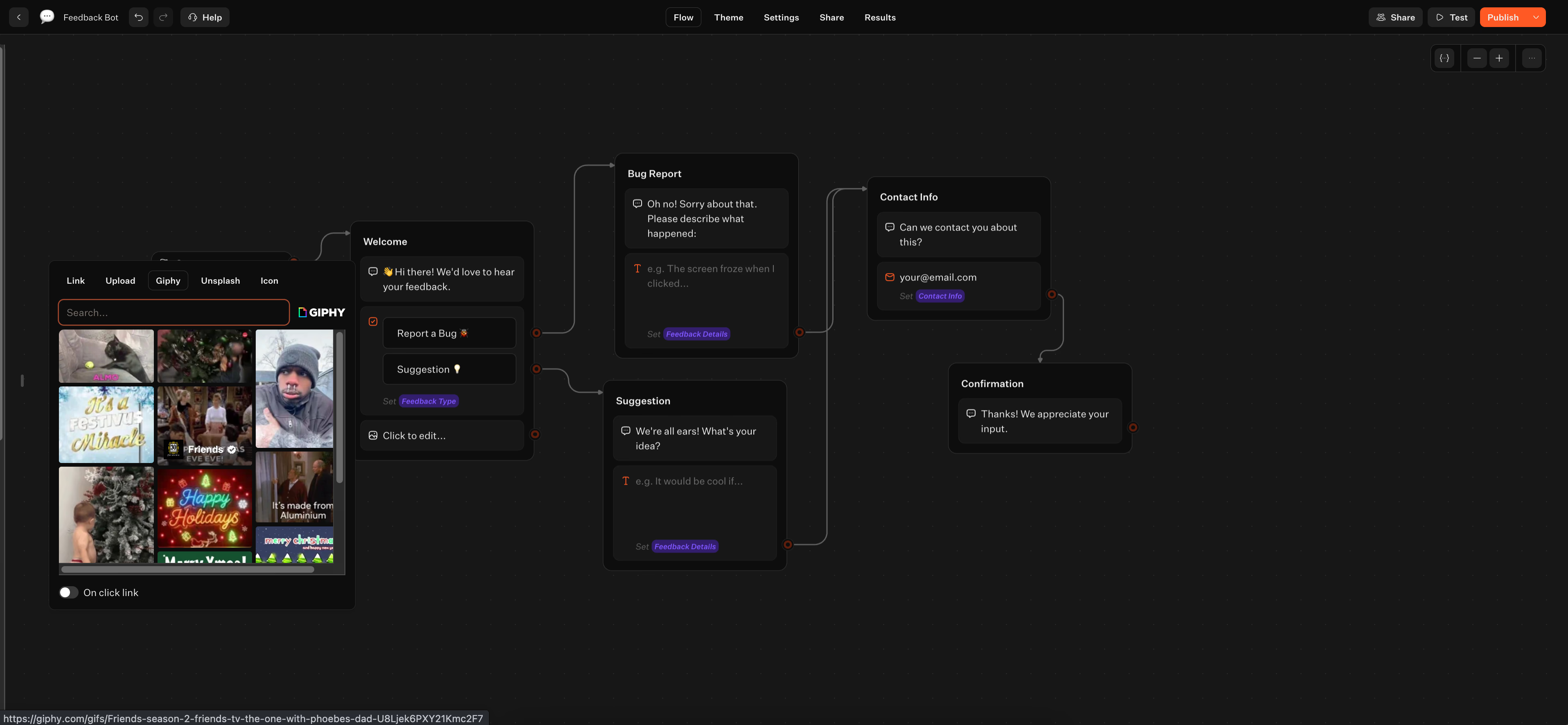
Typebot automatically renders supported media. If you add unsupported types, the flow continues smoothly without breaking the user experience. This simplifies media integration and keeps conversations seamless.
Creating interactive buttons and list messages without coding
Buttons let users tap choices instead of typing. In Typebot, just add an Input block and select Buttons or Pic choice. You don’t need to create JSON arrays manually.
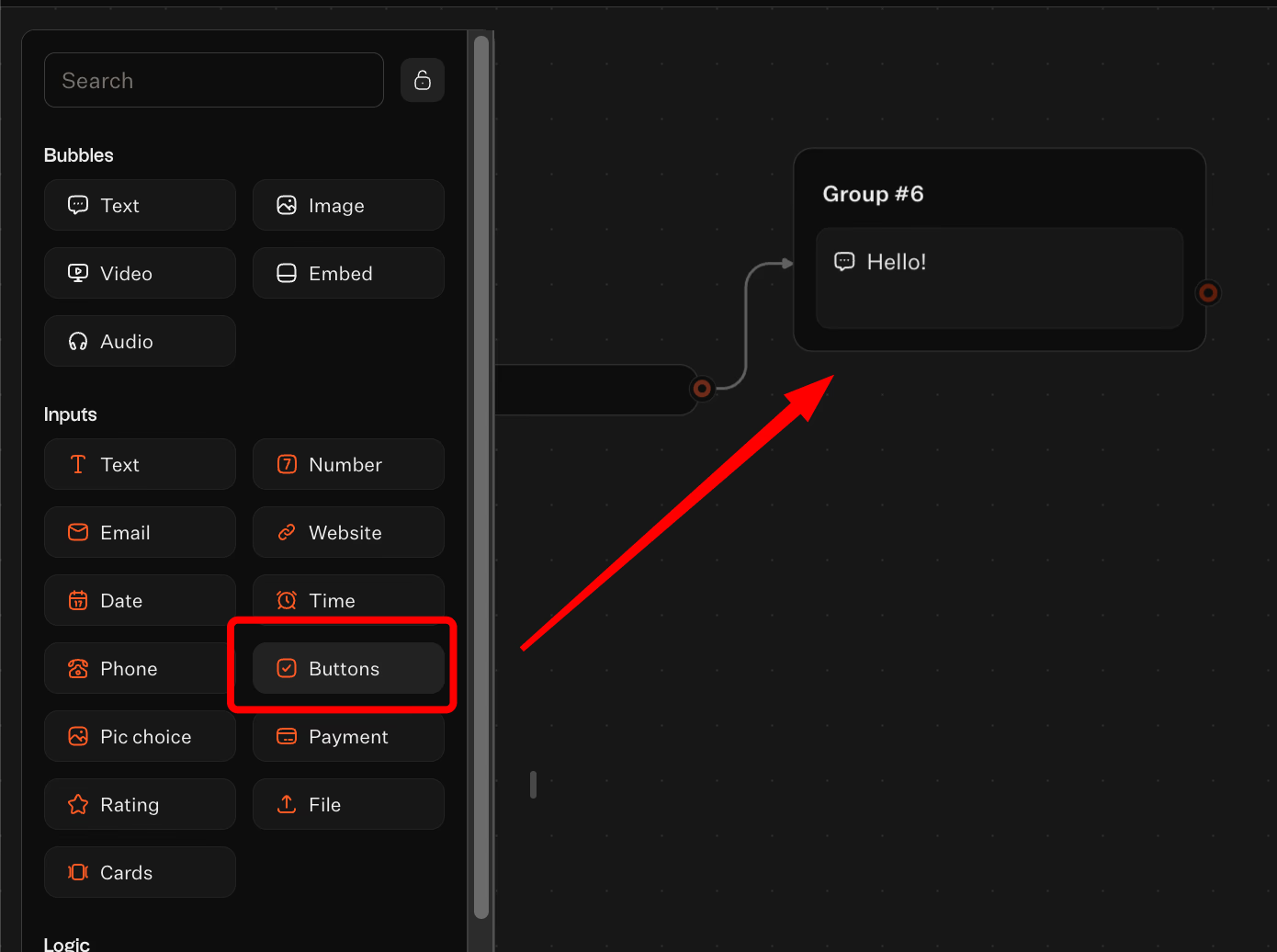
WhatsApp shows up to three buttons at once. Typebot manages overflow by adding indicators like “...” so you don’t handle pagination or errors.
This makes building menus like feedback categories or product selectors simple and reliable. You can focus on design without worrying about API limits or rejections.
Collecting and storing user data with native input fields
Typebot offers validated input blocks for common data types including Email, Phone, Date, Time, and Website. These inputs verify entries before saving them to variables. This reduces bad data and the need for extra checks.
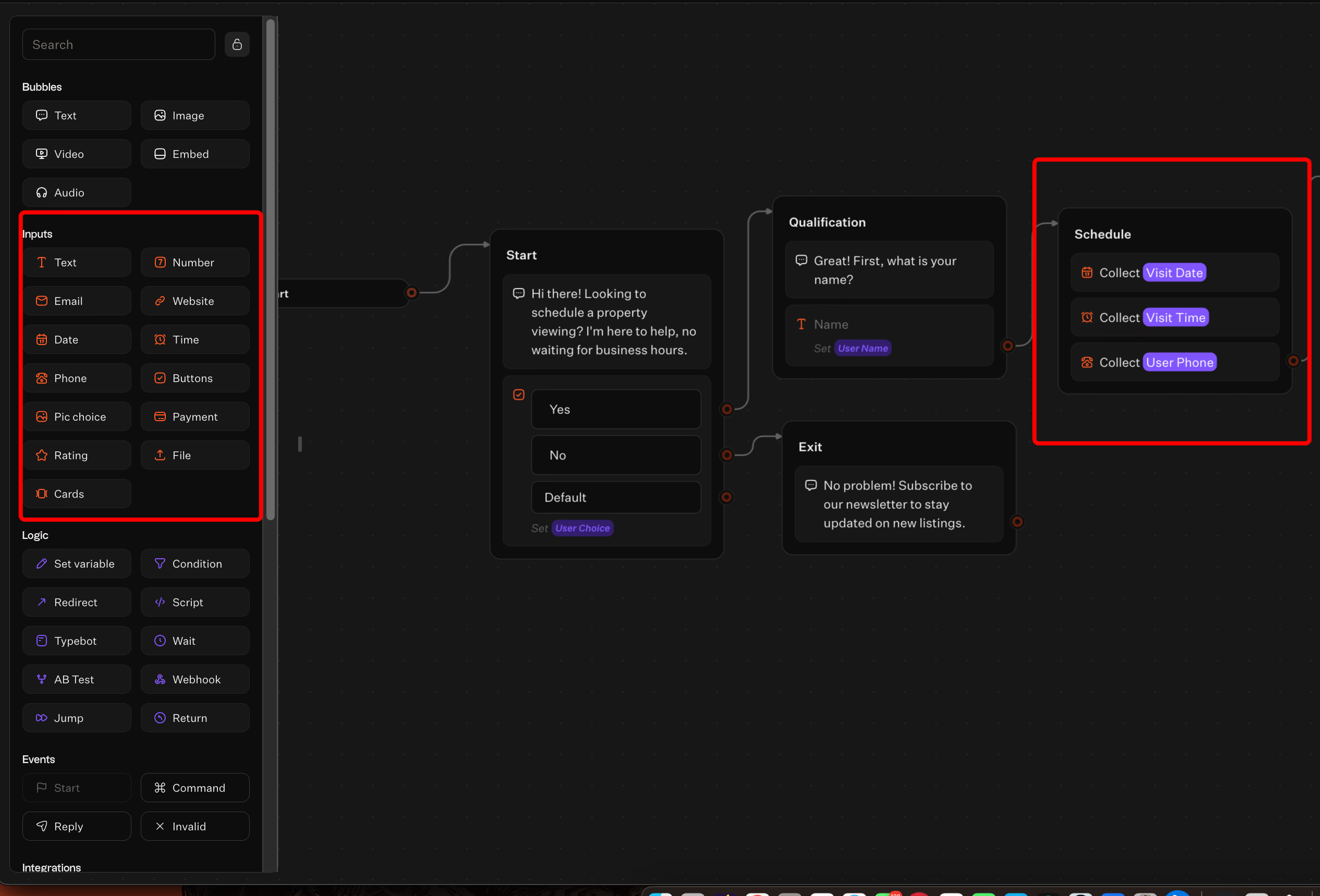
It can also capture some WhatsApp profile fields automatically, so you might skip asking for basic contact info. Collected data personalizes messages in real time or can be sent to your backend for lead scoring and storage. This ensures accurate user data collection with minimal effort.
Want to see these input fields in action? Learn how to build a lead generation chatbot that captures and qualifies prospects automatically.
Using conditional logic to branch conversations based on user behavior
Typebot’s Condition blocks create visual, reusable branches without coding if/else statements. For example, a feedback flow can:
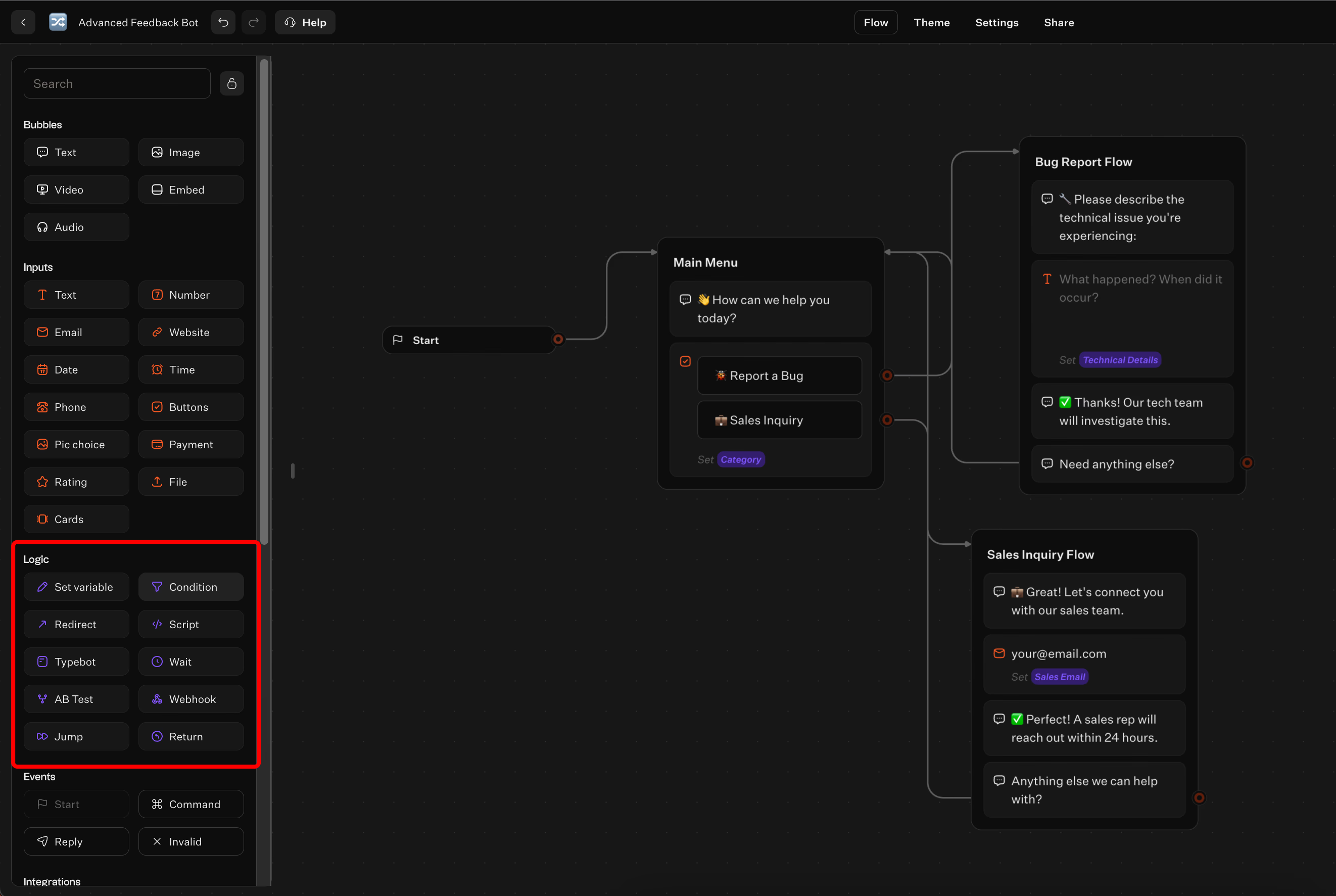
- Offer buttons for categories like Report a Bug or Sales Inquiry.
- Use a Condition block to check the selected category.
- Route users accordingly:
- Report a Bug prompts for technical details.
- Sales Inquiry collects an email for follow-up.
Jump logic lets you reuse flow sections or return users to a main menu. This builds dynamic, personalized conversations that are easy to maintain and update. It streamlines complex dialogue management without programming.
Combining n8n and Typebot for a production-ready architecture
You built backend logic in n8n and designed the conversational experience in Typebot. Now, connect them so the visual frontend handles user interactions while n8n manages automation, integrations, and business logic.
This creates a maintainable, scalable system that keeps chat fast and offloads complex tasks to the backend.
Triggering complex n8n background workflows from Typebot
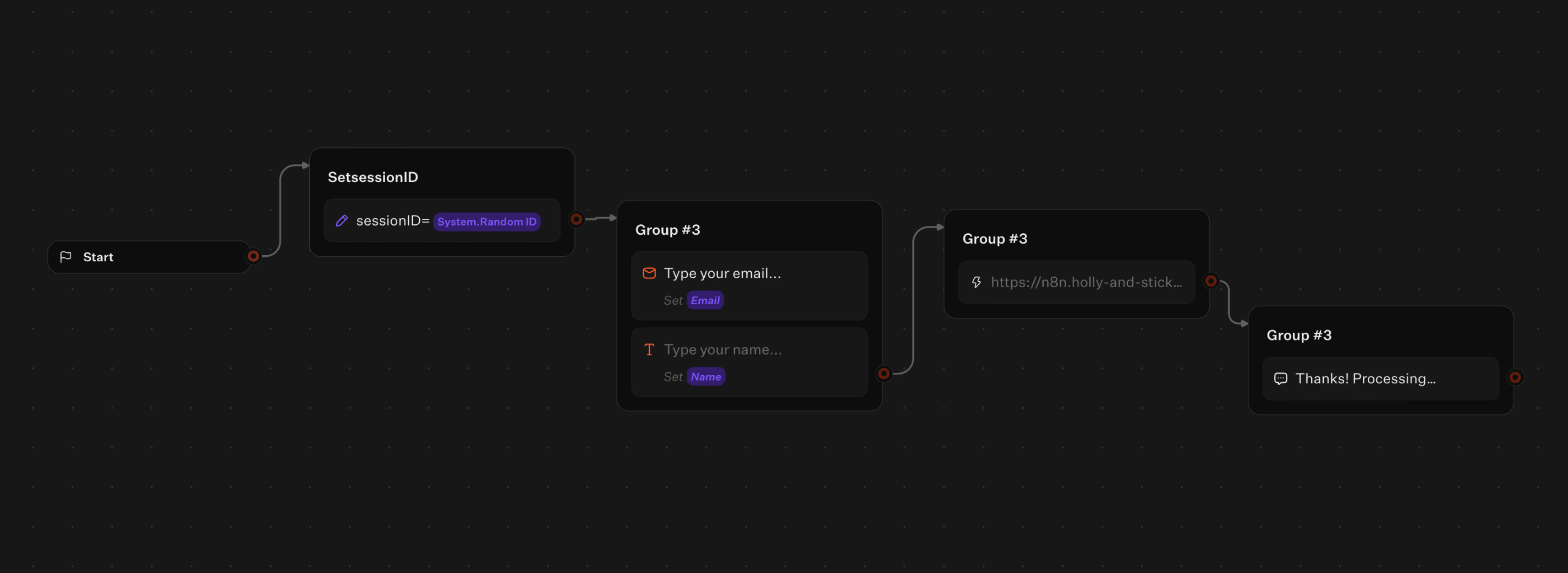
Use Typebot’s Webhook block to invoke n8n when the conversation needs external processing. Place the block at the handoff point, and set it to the POST webhook URL from your n8n workflow.
For example, the flow might look like this:
- Typebot collects a user’s email and basic answers.
-
The Webhook block sends that data to n8n.
-
n8n performs integrations (CRM, Google Sheets, Airtable), lookups, or AI generation, then responds.
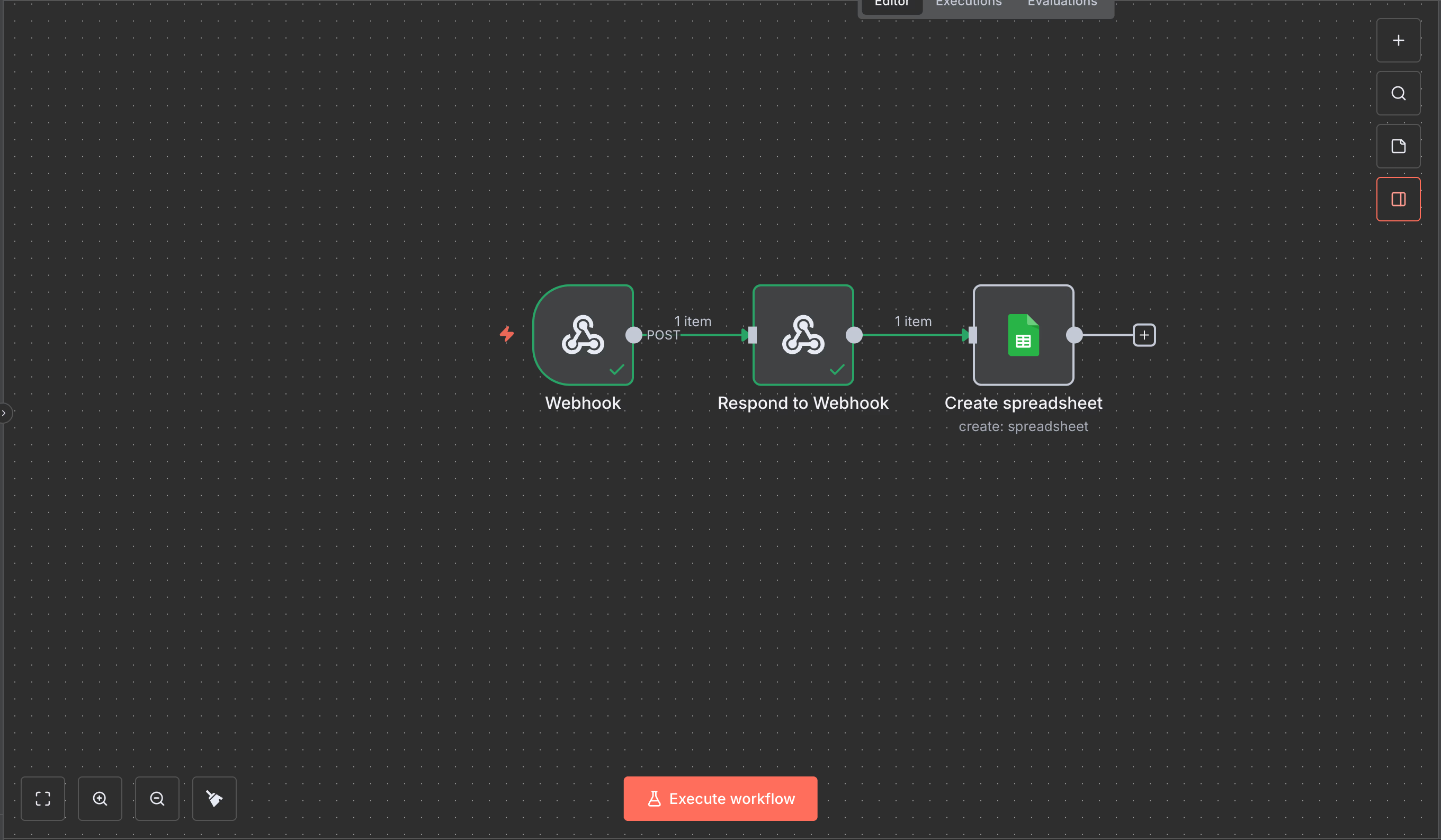
- Typebot resumes the conversation using the response data.
This approach keeps the chat responsive while allowing n8n to handle slower or stateful operations in the background.
Handling data handoffs between the visual interface and the backend
Pass context as JSON from Typebot to n8n. Typebot stores inputs as variables, and the webhook sends them in the request body. On n8n, parse the JSON and extract fields using expressions like \{\{ $json.body... \}\}.
Make the flow bidirectional:
- Configure the Typebot Webhook block to wait for n8n’s response.
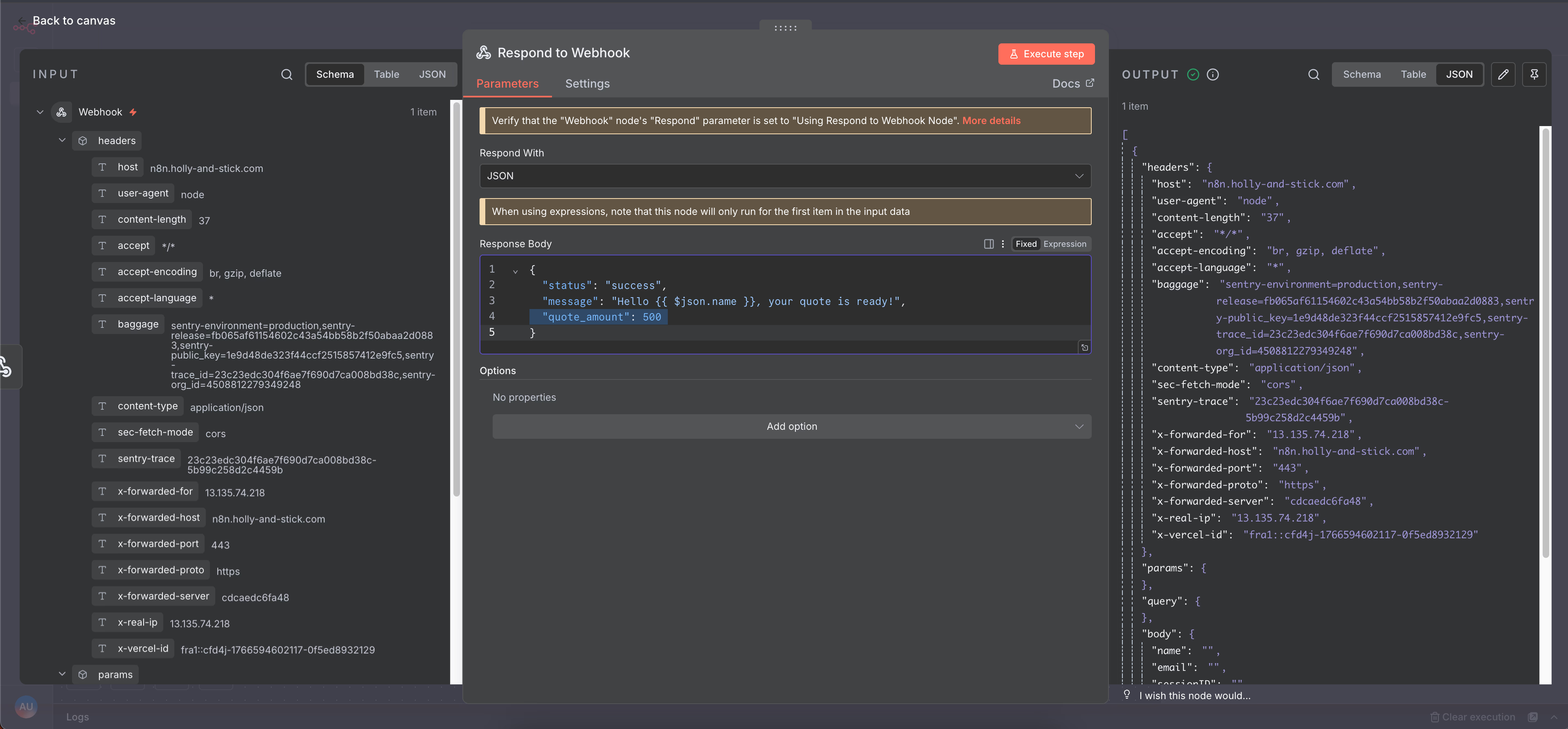
- Return processed data from n8n and display it in the next Typebot bubble.
This setup enables immediate personalization. Quotes, status checks, or calculated results appear in chat after backend processing.
Best practices for security and managing API rate limits
Manage costs and protect data before going to production:
- WhatsApp offers conversation-based pricing with 1,000 free user-initiated conversations per month. After that, charges apply and vary by region and category.
- Use Typebot’s Session Expiration to avoid lingering sessions that consume resources.
- Secure webhook endpoints by using the Verify Token during setup and limiting public exposure of webhook URLs.
- Treat phone numbers and profile data as sensitive information. Restrict access, follow privacy regulations, and avoid requesting unnecessary sensitive data.
Following these precautions reduces operational risks and prevents unexpected charges.
Monitoring drop-off rates and optimizing conversation metrics
Measure and improve both frontend and backend performance by:
- Tracking Conversation Completion Rate to see how many users finish your flow.
- Inspecting User Drop-off Points to identify which questions or media cause exits.
- Monitoring Button Click-through Rates and Input Field Completion Rates to evaluate user experience and copy.
- Correlating Typebot analytics with n8n execution logs to determine if drop-offs result from UX issues or backend errors.
Use these insights to refine prompts, reorder options, reduce friction, and add retry or error handling. Combining visual metrics with backend logs provides a clear path to improve performance and scale reliably.
Replace outdated forms with engaging, interactive chatbots.
No trial. Generous free plan.
Final Words
A production WhatsApp bot must manage more than messages. You need to handle state, cost, compliance, and reliability. Combining Typebot and n8n creates a resilient architecture where each tool excels at its specific role. This approach makes long-term iteration and scaling far easier.
It gives teams a clear foundation to iterate on. You can add new flows, integrations, or AI capabilities without rewriting the core system or risking fragile conversation logic.